
functions.php – wichtige codes
Your Guide to the WordPress Functions.php File
In this article, we’ll take an in-depth look at the WordPress functions file. We’ll discuss how it works and where you can find it. Finally, we’ll show you some interesting tweaks you can make to your functions.php file.
To get involved in WordPress development, you first need to understand how the platform’s most important files work. WordPress makes it pretty easy to begin tinkering with your site. However, it can be difficult to know where to start — or predict what your changes will actually do.
A perfect place to learn is with the functions.php file, which is also known as the functions file. This is a common location for making changes and adding code to WordPress. By editing this file, you can accomplish several useful things, such as adding Google Analytics to your site, creating custom menus, or displaying a post’s estimated reading time.
What Is the functions.php File?
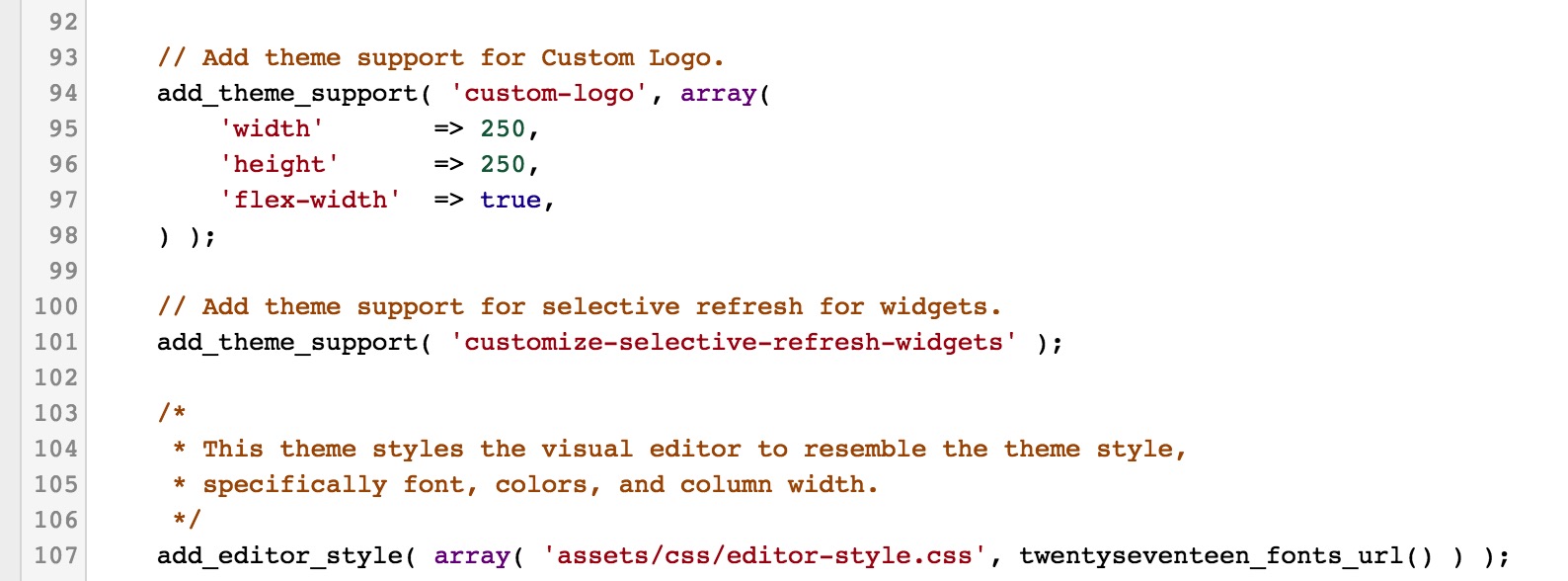
The WordPress functions.php file comes included with all free and premium WordPress themes. To the untrained eye, it may not look like much, but the functions file is a powerful tool that enables you to do a lot of interesting things.
The WordPress Codex describes the functions file like this:
“You can use it to call functions, both PHP and built-in WordPress, and to define your own functions. You can produce the same results by adding code to a WordPress Plugin or through the WordPress Theme functions file.”
In simple terms, the functions file enables you to add custom code to your site. It lets you create new functions or reference existing ones in customized ways. As the Codex points out, this makes the functions file very similar to a plugin, but there are some differences between the two.
The most important difference is that the functions file belongs to a specific theme. If you were to change themes or update to a newer version, the changes you’ve made would disappear. For this reason, you should consider creating a child theme and adding the new code to the child’s functions file instead. This way, you can update the parent theme without losing your changes.
Whether you choose to use the functions file or create a plugin is entirely up to you, depending on your needs. Let’s now look at the different ways you can edit your functions file.
How to Edit the Functions File (2 Methods)
Editing your functions file is as easy as using a standard text editor, like TextEdit or Notepad. Before you get started, it is vitally important that you create a backup of your site, and save the original, unedited functions.php file. This will enable you to restore your site if something goes wrong during the editing process.
1. Use the WordPress Editor
If you have access to the WordPress admin interface, you can edit the functions file directly from the Theme Editor. Go to Appearance > Editor.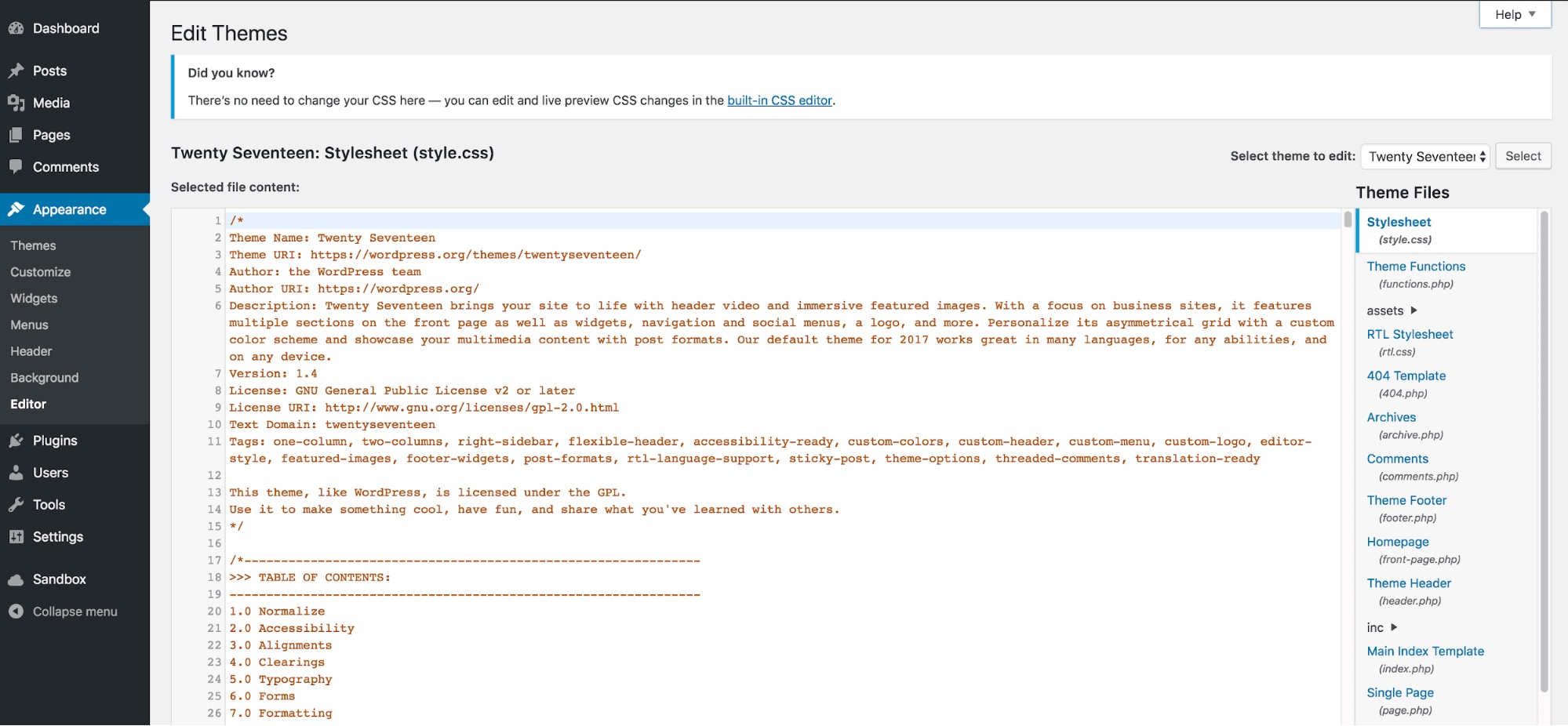
On the right-hand side of the screen, you can see a list of all files contained in the theme. These differ depending on which theme you use, but one of the top options should be Theme Functions (functions.php). Simply click on the file to open it in the editor.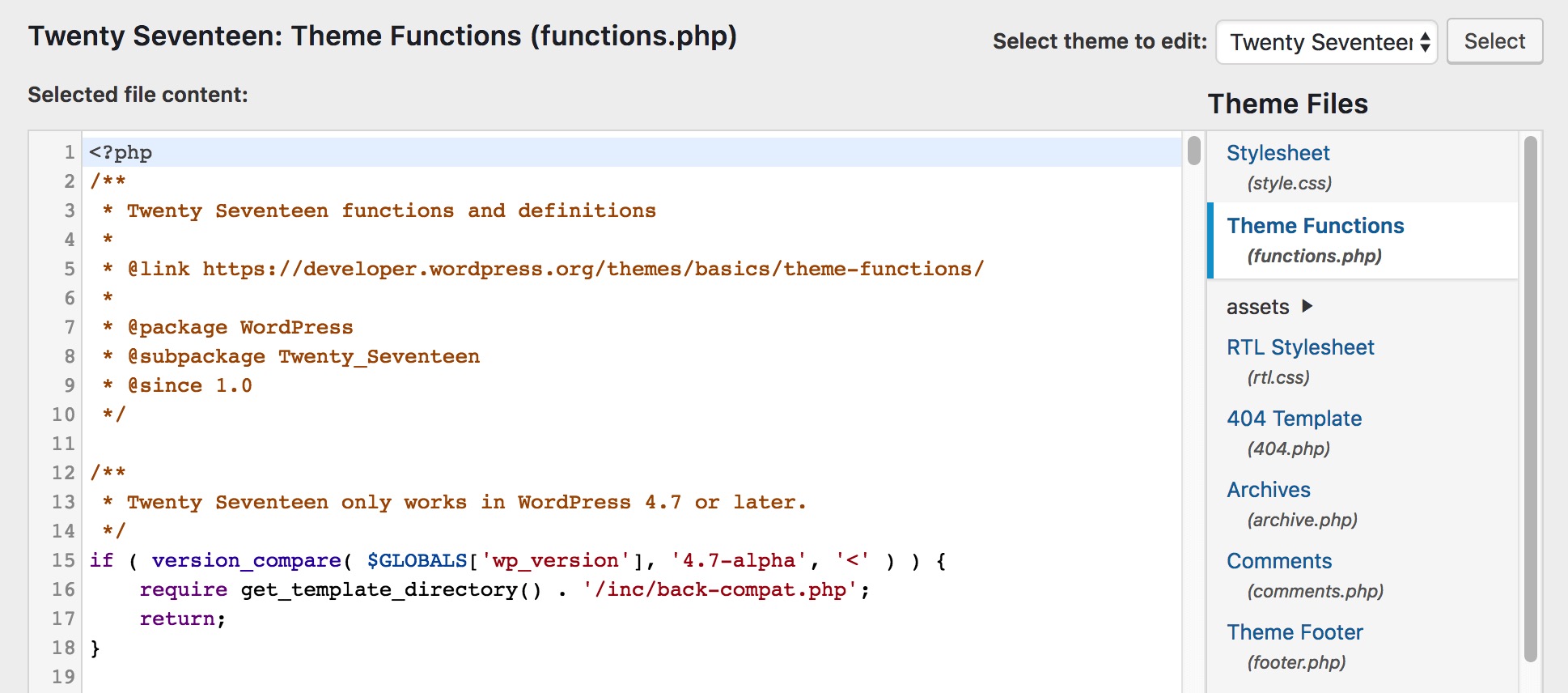
Now, you’re able to edit the file directly. Don’t forget to click on Update File at the bottom to save your changes when you’re done.
2. Access the File Through FTP
If you are unable to use the admin dashboard or prefer to configure files directly, you can also access the functions file using an FTP tool such as FileZilla.
Open your FTP tool and enter your hosting credentials to connect to your site. To find the right file, navigate to wp-content/themes/[the name of your theme]. When you open this folder, you’ll see the functions.php file.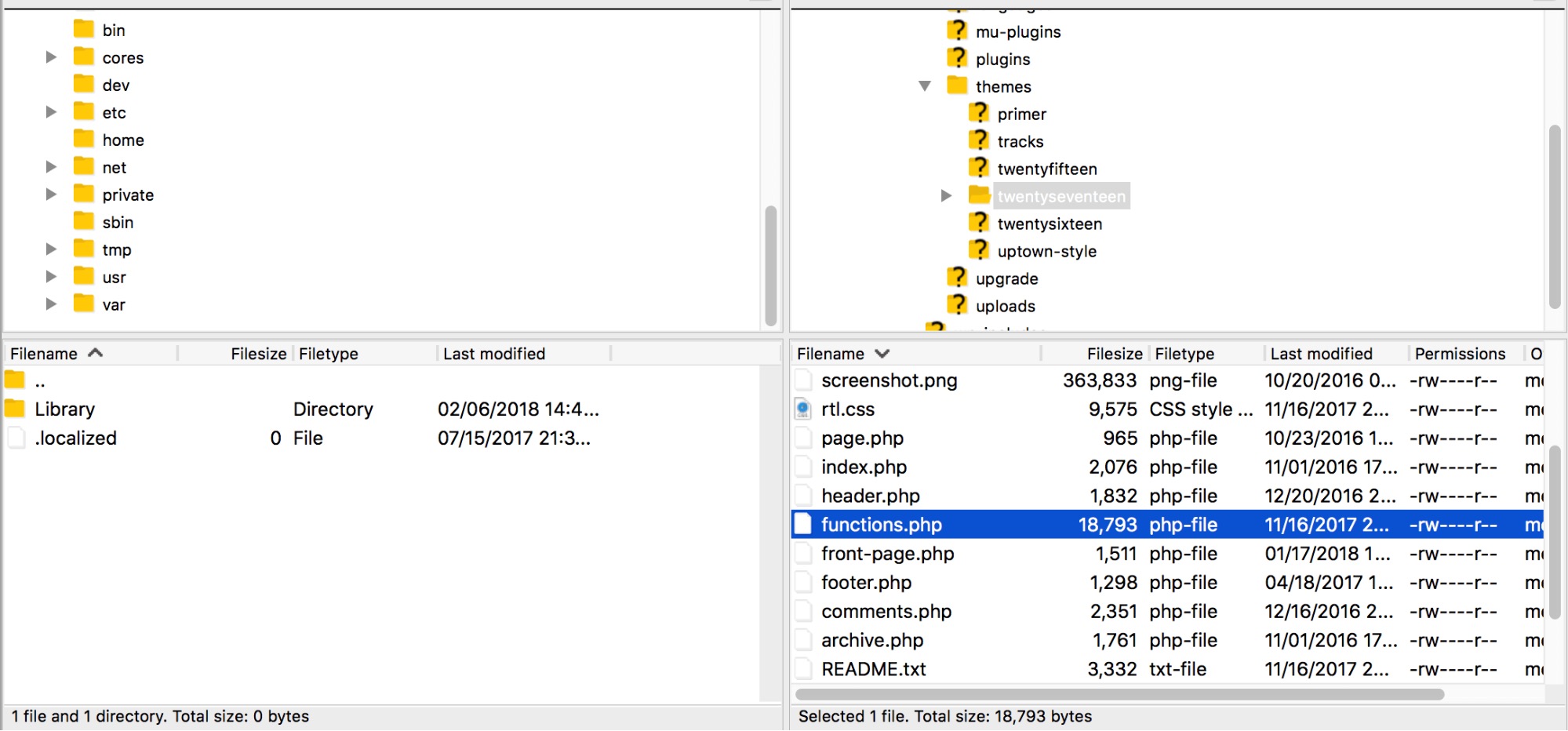
All you have to do now is to edit it using your preferred text editing software. When you have finished making changes, save and overwrite the functions file with the exact same name and extension.
add_filter('the_content', function( $content ){ //--Remove all inline styles by fazal rehman shamil-- $content = preg_replace('/ style=("|\')(. *?)("|\')/','',$content); return $content; }, 20);<?php
// First, this will disable support for comments and trackbacks in post types
function df_disable_comments_post_types_support() {
$post_types = get_post_types();
foreach ($post_types as $post_type) {
if(post_type_supports($post_type, 'comments')) {
remove_post_type_support($post_type, 'comments');
remove_post_type_support($post_type, 'trackbacks');
}
}
}add_action( 'wp_enqueue_scripts', function() {
$styles = wp_styles();
$styles->add_data( 'twentytwenty-style', 'after', array() );
}, 20 );
add_action('admin_init', 'df_disable_comments_post_types_support');

// Then close any comments open comments on the front-end just in case
function df_disable_comments_status() {
   return false;
}
add_filter('comments_open', 'df_disable_comments_status', 20, 2);
add_filter('pings_open', 'df_disable_comments_status', 20, 2);

// Finally, hide any existing comments that are on the site.
function df_disable_comments_hide_existing_comments($comments) {
   $comments = array();
   return $comments;
}
add_filter('comments_array', 'df_disable_comments_hide_existing_comments', 10, 2);

Rename the Posts section in WordPress Admin
Rename the Posts section in WordPress Admin
<?php

// Rename posts in the admin menu
function update_post_label() {
   global $menu;
   global $submenu;
   $submenu['edit.php'][5][0] = 'Story';
   $submenu['edit.php'][10][0] = 'Add Story';
   $submenu['edit.php'][16][0] = 'Story Tags';
   $menu[5][0] = 'Stories';
}
add_action( 'admin_menu', 'update_post_label' );
Rename the buttons/labels in the Post section
function update_post_name() {
   global $wp_post_types;
   $labels = &$wp_post_types['post']->labels;
   $labels->name = 'Stories';
   $labels->singular_name = 'Story';
   $labels->add_new = 'Add Story';
   $labels->add_new_item = 'Add Story';
   $labels->edit_item = 'Edit Story';
   $labels->new_item = 'Story';
   $labels->view_item = 'View Story';
   $labels->search_items = 'Search Story';
   $labels->not_found = 'No Stories found';
   $labels->not_found_in_trash = 'No Stories found in Trash';
   $labels->all_items = 'All Stories';
   $labels->menu_name = 'Stories';
   $labels->name_admin_bar = 'Stories';
}
add_action( 'init', 'update_post_name' );
Remove WordPress Version Number
4. Remove the WordPress Version Number
Old versions of WordPress can contain security flaws that malicious hackers and bots can exploit. One way to avoid this risk is to hide which version of WordPress your site uses. This is called security through obscurity.
Before we move on, it’s important to note that obscurity should never be your only security measure. It’s more like adding an extra bulwark to your already secure WordPress fortress.
Hiding your version number only requires that you add the following, very simple code snippet to the functions file:
You should always use the latest version of WordPress. However, you may still want to remove the WordPress version number from your site. Simply add this code snippet to your functions file.
remove_action('wp_head', 'wp_generator');The version number will now be removed from all areas of your site, including its code and your RSS feed.
function wpb_remove_version() {
return '';
}
add_filter('the_generator', 'wpb_remove_version');

/* inline CSS deaktivieren */
function suki_remove_dynamic_css() {
	remove_all_filters( 'suki/frontend/dynamic_css' );
	remove_all_filters( 'suki/frontend/woocommerce/dynamic_css' );

	remove_all_filters( 'suki/frontend/pro_dynamic_css' );
	remove_all_filters( 'suki/frontend/woocommerce/pro_dynamic_css' );
}
add_action( 'wp_enqueue_scripts', 'suki_remove_dynamic_css', 0 );
With the hook wp_footer I could load the custom CSS later!
add_action( 'wp_enqueue_scripts', 'custom_styles', 105 ); // 102 is the latest used number from parent theme
function custom_styles() {
    //wp_enqueue_style( 'parent-theme', get_template_directory_uri() . '/style.css', array(), et_get_theme_version() );
    wp_dequeue_style( 'divi-style' );
    wp_deregister_style( 'divi-style' );
    //wp_enqueue_style( 'child-theme', get_stylesheet_uri(), array(), filemtime( get_stylesheet_directory() . '/style.css' ) );
}

// add Child Theme CSS as last
add_action('wp_footer', 'custom_styles_footer');
function custom_styles_footer() {
    wp_enqueue_style( 'child-theme', get_stylesheet_uri(), array(), filemtime( get_stylesheet_directory() . '/style.css' ) );
}
1. Add Google Analytics to Your Site
There are several ways of integrating Google Analytics with your WordPress site. One of them is by adding your credentials directly to the functions file. This will insert the analytics tracking into your site’s header, ensuring that every visit is properly captured.
Start by pasting the following code at the bottom of your functions file:
<?php
add_action('wp_head', 'wpb_add_googleanalytics');
function wpb_add_googleanalytics() { ?>
// Replace this line with your Google Analytics Tracking ID
<?php } ?>
2. Change the Default Login Error Message
By default, when somebody makes an unsuccessful login attempt to a WordPress site they’ll see an error message like this:
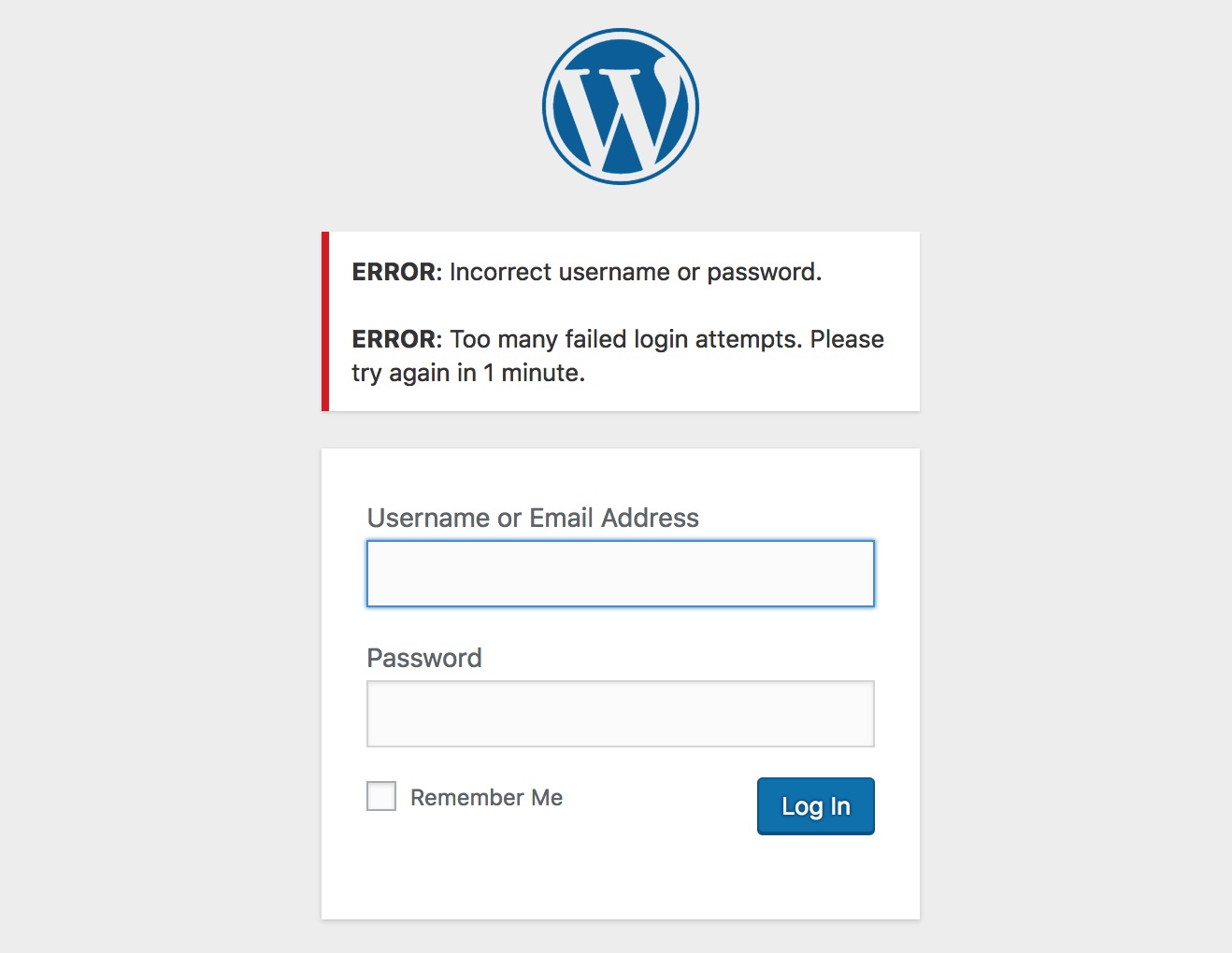
This is not ideal because the site is giving potential intruders information about why the attempt didn’t work. A more secure solution is to change this to a generic message instead.
You can do this easily by adding the following code to your functions file:
function no_wordpress_errors(){
return 'Something went wrong!';
}
add_filter( 'login_errors', 'no_wordpress_errors' );
See that ‘Something went wrong!’ message on the second line? That’s the message that will appear the next time an incorrect login attempt occurs:
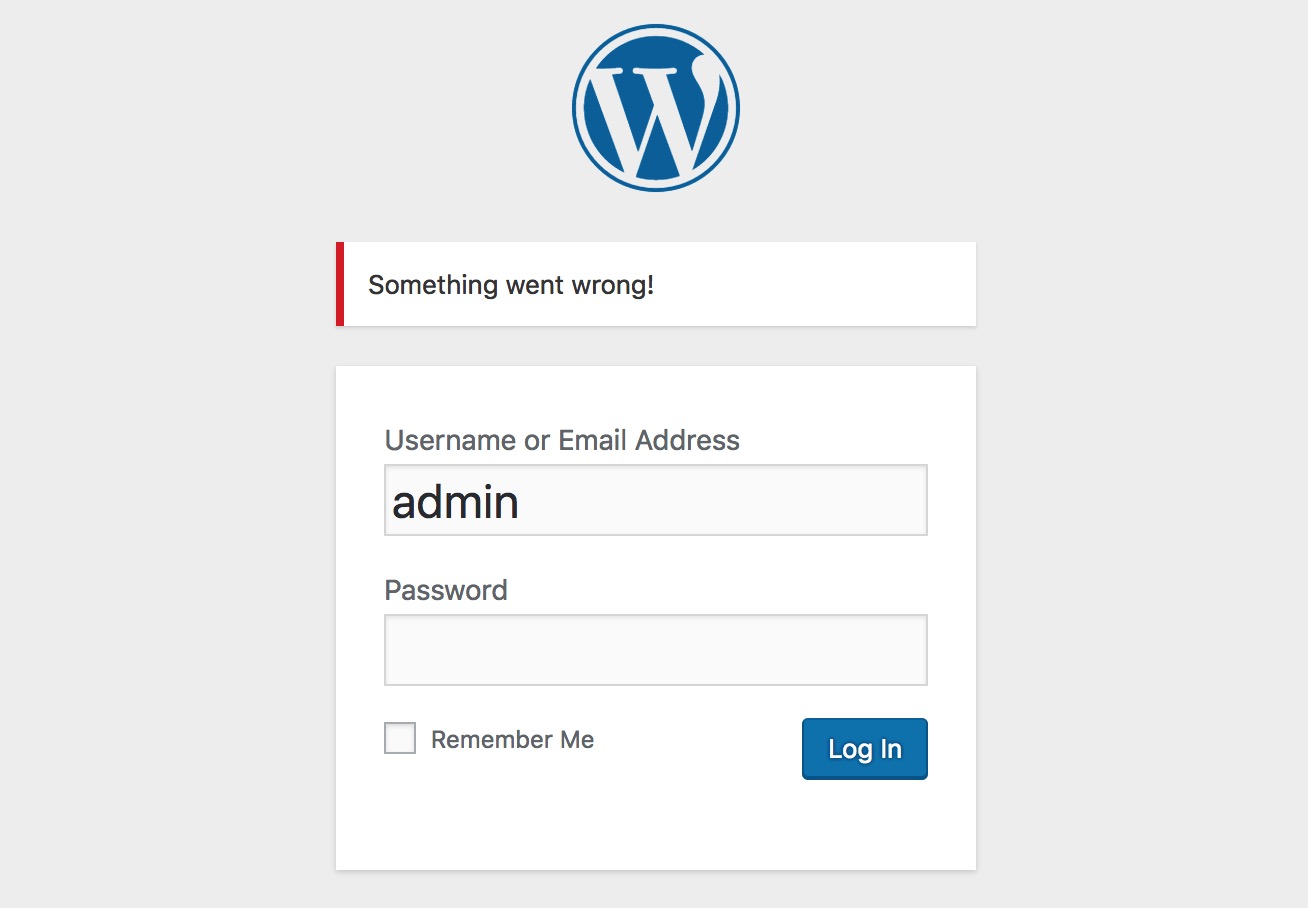
You can change this to whatever you want, as long as you keep the single quote characters. Try it out with different messages to see how it works.
Add a Custom Dashboard Logo
Want to white label your WordPress admin area? Adding a custom dashboard logo is the first step in the process.
First you’ll need to upload your custom logo to your theme’s images folder as custom-logo.png. Make sure your custom logo is 16×16 pixels in size.
After that you can add this code to your theme’s functions file.
function wpb_custom_logo() {
echo '
<style type="text/css">
#wpadminbar #wp-admin-bar-wp-logo > .ab-item .ab-icon:before {
background-image: url(' . get_bloginfo('stylesheet_directory') . '/images/custom-logo.png) !important;
background-position: 0 0;
color:rgba(0, 0, 0, 0);
}
#wpadminbar #wp-admin-bar-wp-logo.hover > .ab-item .ab-icon {
background-position: 0 0;
}
</style>
';
}
//hook into the administrative header output
add_action('wp_before_admin_bar_render', 'wpb_custom_logo');
For alternate methods and more details see our guide on how to add a custom dashboard logo in WordPress.
Change the Footer in WordPress Admin Panel
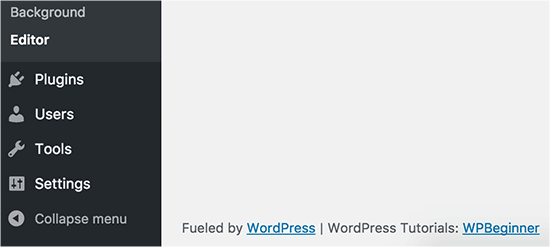
The footer in WordPress admin area shows the message ‘Thank you for creating with WordPress’. You can change it to anything you want by adding this code.
function remove_footer_admin () {

echo 'Fueled by <a href="http://www.wordpress.org" target="_blank">WordPress</a> | WordPress Tutorials: <a href="https://www.wpbeginner.com" target="_blank">WPBeginner</a></p>';

}

add_filter('admin_footer_text', 'remove_footer_admin');
Feel free to change the text and links that you want to add. Here is how it looks on our test site.
Add Custom Dashboard Widgets in WordPress
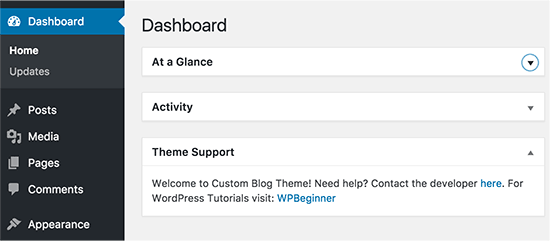
You probably have seen widgets that numerous plugins and themes add in the WordPress dashboard. As a theme developer, you can add one yourself by pasting the following code:
add_action('wp_dashboard_setup', 'my_custom_dashboard_widgets');

function my_custom_dashboard_widgets() {
global $wp_meta_boxes;

wp_add_dashboard_widget('custom_help_widget', 'Theme Support', 'custom_dashboard_help');
}

function custom_dashboard_help() {
echo '<p>Welcome to Custom Blog Theme! Need help? Contact the developer <a href="mailto:yourusername@gmail.com">here</a>. For WordPress Tutorials visit: <a href="https://www.wpbeginner.com" target="_blank">WPBeginner</a></p>';
}
This is how it would look like:
For details, see our tutorial on how to add custom dashboard widgets in WordPress.
Change the Default Gravatar in WordPress
Have you seen the default mystery man avatar on blogs? You can easily replace it with your own branded custom avatars. Simply upload the image you want to use as default avatar and then add this code to your functions file.
add_filter( 'avatar_defaults', 'wpb_new_gravatar' );
function wpb_new_gravatar ($avatar_defaults) {
$myavatar = 'http://example.com/wp-content/uploads/2017/01/wpb-default-gravatar.png';
$avatar_defaults[$myavatar] = "Default Gravatar";
return $avatar_defaults;
}
Now you can head over to Settings » Discussion page and select your default avatar.
For detailed instructions, see our guide on how to change the default gravatar in WordPress.
3. Add the Estimated Reading Time for a Post
This neat trick enables you to calculate and display the estimated amount of time required to read a post. Your visitors can then get a general idea of how long the content is right away.
To implement this code, you need to make two separate edits. The first one is done to the functions file as usual, where you’ll want to paste the following snippet:
function reading_time() {
$content = get_post_field( 'post_content', $post->ID );
$word_count = str_word_count( strip_tags( $content ) );
$readingtime = ceil($word_count / 200);
if ($readingtime == 1) {
$timer = " minute";
} else {
$timer = " minutes";
}
$totalreadingtime = $readingtime . $timer;
return $totalreadingtime;
}
However, this only performs the calculation. You’ll now need to add the following code wherever you want the results to be displayed:echo reading_time();
For example, you could add it to the metadata that appears alongside each post. Every theme is constructed differently, but in the Twenty Seventeen theme, this is located in template-parts > post > content.php.
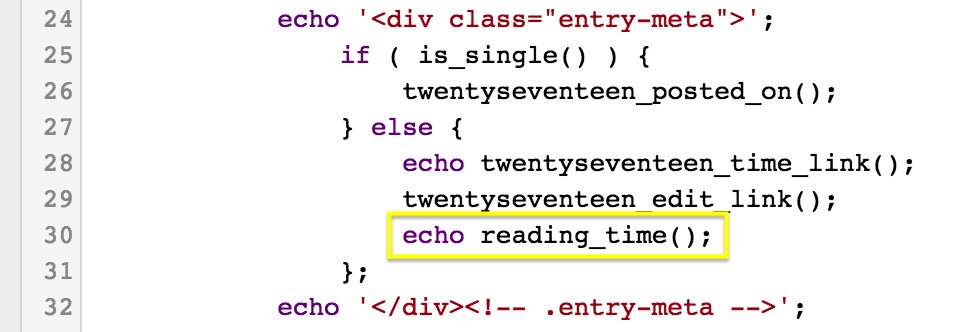
The estimated reading time will now appear in each post’s header alongside the date.
5. Automatically Update Your Copyright Notice
Updating the year in your copyright notice is one of those little tasks that’s easy to forget. One way you can keep up is by using this trick that automatically generates the copyright date based on the year when your first post was made up.
Paste the following code into your functions file:
function wpb_copyright() {
global $wpdb;
$copyright_dates = $wpdb->get_results("
SELECT
YEAR(min(post_date_gmt)) AS firstdate,
YEAR(max(post_date_gmt)) AS lastdate
FROM
$wpdb->posts
WHERE
post_status = 'publish'
");
$output = '';
if($copyright_dates) {
$copyright = "© " . $copyright_dates[0]->firstdate;
if($copyright_dates[0]->firstdate != $copyright_dates[0]->lastdate) {
$copyright .= '-' . $copyright_dates[0]->lastdate;
}
$output = $copyright;
}
return $output;
}
Then add the following code wherever you want the copyright information to be displayed:
<?php echo wpb_copyright(); ?>
You’ll now see the dynamically updating copyright date on your site.
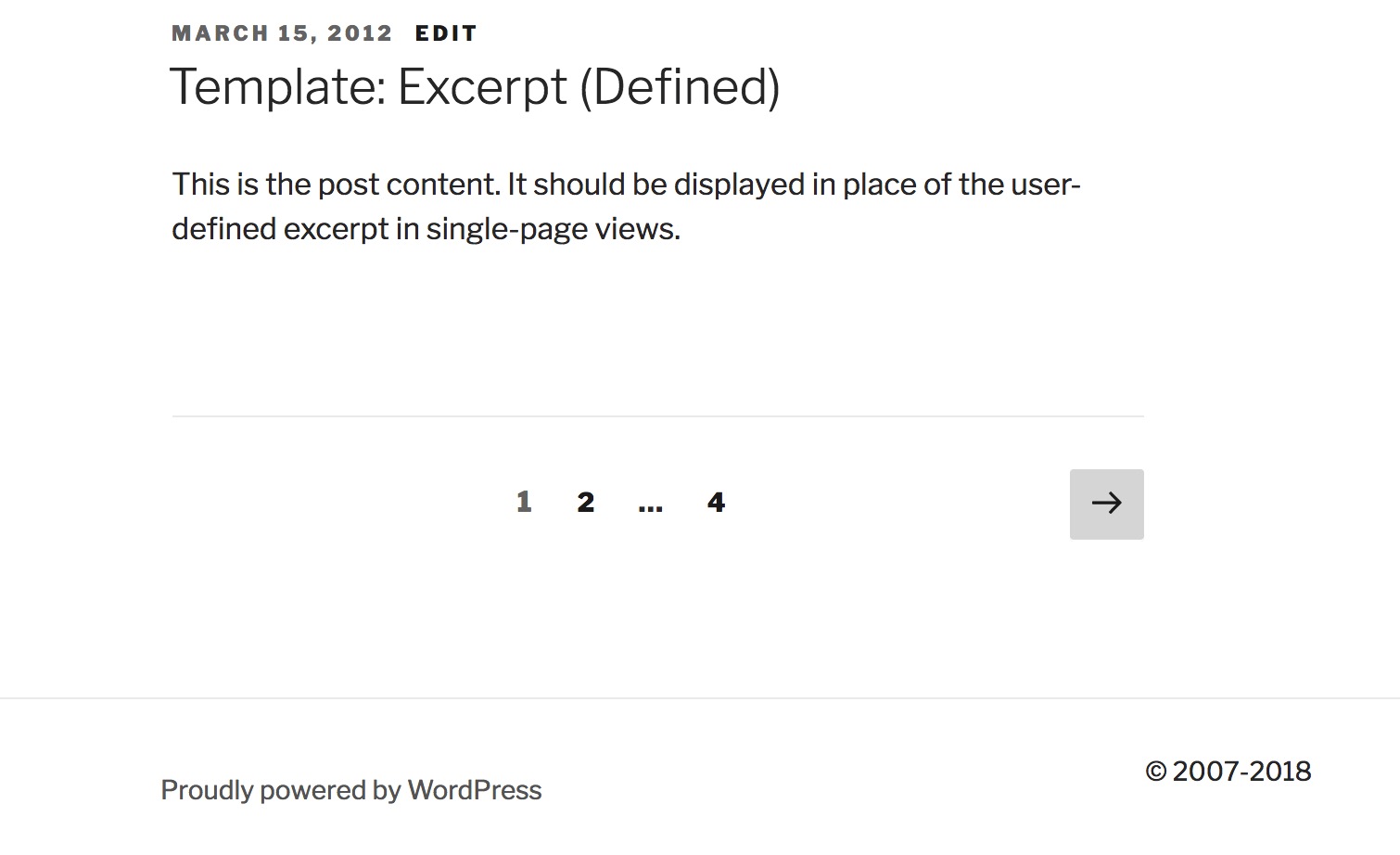
In this case, we added the date to the footer.php file so it would be displayed at the bottom of the page.
Dynamic Copyright Date in WordPress Footer
You can simply add copyright date by editing the footer template in your theme. However, it will not show when your site started and it will not automatically change next year.
You can use this code to add a dynamic copyright date in WordPress footer.
function wpb_copyright() {
global $wpdb;
$copyright_dates = $wpdb->get_results("
SELECT
YEAR(min(post_date_gmt)) AS firstdate,
YEAR(max(post_date_gmt)) AS lastdate
FROM
$wpdb->posts
WHERE
post_status = 'publish'
");
$output = '';
if($copyright_dates) {
$copyright = "© " . $copyright_dates[0]->firstdate;
if($copyright_dates[0]->firstdate != $copyright_dates[0]->lastdate) {
$copyright .= '-' . $copyright_dates[0]->lastdate;
}
$output = $copyright;
}
return $output;
}
After adding this function, you’ll need to open your footer.php file and add the following code wherever you like to display the dynamic copyright date:
<?php echo wpb_copyright(); ?>This function looks for the date of your first post, and the date of your last post. It then echos the years wherever you call the function.
For more details, see our guide on how to add dynamic copyright date in WordPress.
6. Add Custom Menus
Most themes have pre-defined navigation menus, but what if you want to create your own menu and place it wherever you want on your site? All you need to do is paste this code into your functions file:
function wpb_custom_new_menu() {
register_nav_menu('my-custom-menu',__( 'My Customized Menu' ));
}
add_action( 'init', 'wpb_custom_new_menu' );
You can replace ‘My Customized Menu’ with the name you want to give the menu. If you go to Appearance > Menus in your admin area, you should see the new option listed.
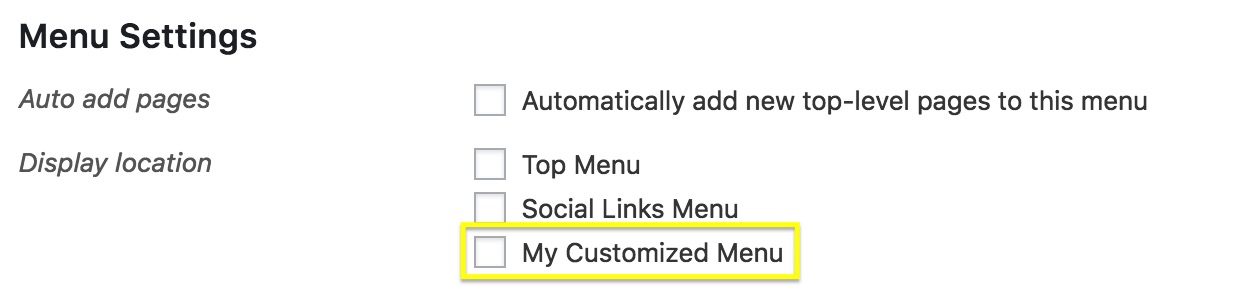
You can now add the new menu anywhere on your site.
<?php
wp_nav_menu( array(
'theme_location' => 'my-custom-menu',
'container_class' => 'custom-menu-class' ) );
?>
Most commonly, you’ll want to place this code in the header.php file.
Add New Navigation Menus to Your Theme
WordPress allows theme developers to define navigation menus and then display them. Add this code in your theme’s functions file to define a new menu location in your theme.
function wpb_custom_new_menu() {
  register_nav_menu('my-custom-menu',__( 'My Custom Menu' ));
}
add_action( 'init', 'wpb_custom_new_menu' );
You can now go to Appearance » Menus and you will see ‘My Custom Menu’ as theme location option.
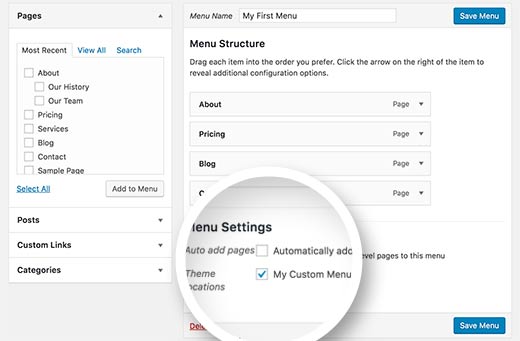
Now you need to add this code to your theme where you want to display navigation menu.
<?php
wp_nav_menu( array(
    'theme_location' => 'my-custom-menu',
    'container_class' => 'custom-menu-class' ) );
?>
For detailed instructions, see our guide on how to add custom navigation menus in WordPress themes.
7. Customize Your Excerpts
Excerpts are short sample descriptions of your posts that can be displayed on your homepage or in search results, instead of the full post’s contents. By default all excerpts have the same length and link text, but you can change that.
First, let’s alter the text of the link that takes you from the excerpt to the full post. This is usually “Read more” or “Continue reading,” but you can make it whatever you want by pasting the following snippet into your functions file:
function new_excerpt_more($more) {
global $post;
return '<a class="moretag" href="'. get_permalink($post->ID) . '"> Read the full article...</a>';
}
add_filter('excerpt_more', 'new_excerpt_more');
Here the link text has been set to Read the full article…:
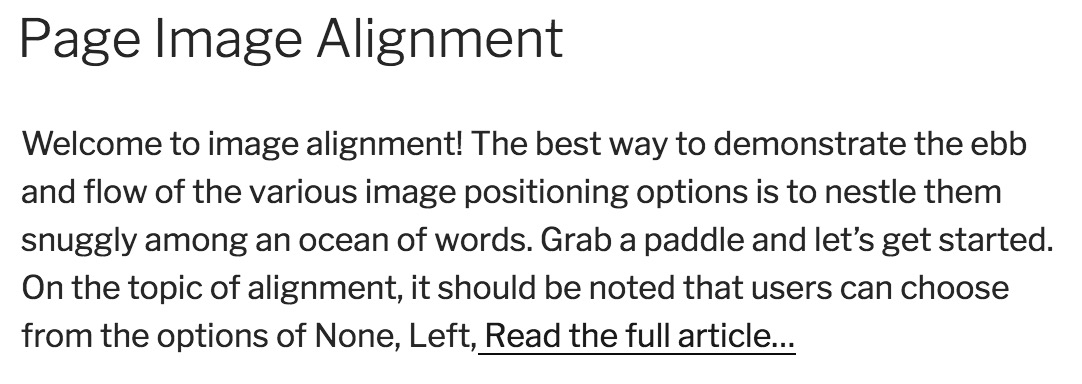
Then, let’s change the length of the excerpt. Paste this code into your functions file:
function new_excerpt_length($length) {
return 20;
}
add_filter('excerpt_length', 'new_excerpt_length');
By default, the standard length is 55 words. In this example, it’s been set to 20. You can change the number to whatever you wish.
8. Add a Random Background to Your Site
Finally, let’s end with a fun design trick. This tweak enables you to randomly generate a new background color for your site every time somebody visits it. Start by adding the following code to the functions file:
function wpb_bg() {
$rand = array('0', '1', '2', '3', '4', '5', '6', '7', '8', '9', 'a', 'b', 'c', 'd', 'e', 'f');
$color ='#'.$rand[rand(0,15)].$rand[rand(0,15)].$rand[rand(0,15)].
$rand[rand(0,15)].$rand[rand(0,15)].$rand[rand(0,15)];
echo $color;
}
This code generates the HTML tag for the colors, so all you need to do now is to make sure it gets applied to the page. To do that, you’ll need to find the <body> tag, which should look like this:
<body <?php body_class(); ?>>This is usually found in the header.php file, but can be elsewhere depending on your theme. When you’ve located the right line, simply replace it with the following code:
<body <?php body_class(); ?> style="background-color:<?php wpb_bg();?>">>
Save your file now and open your website. You should see that it has a new background color.
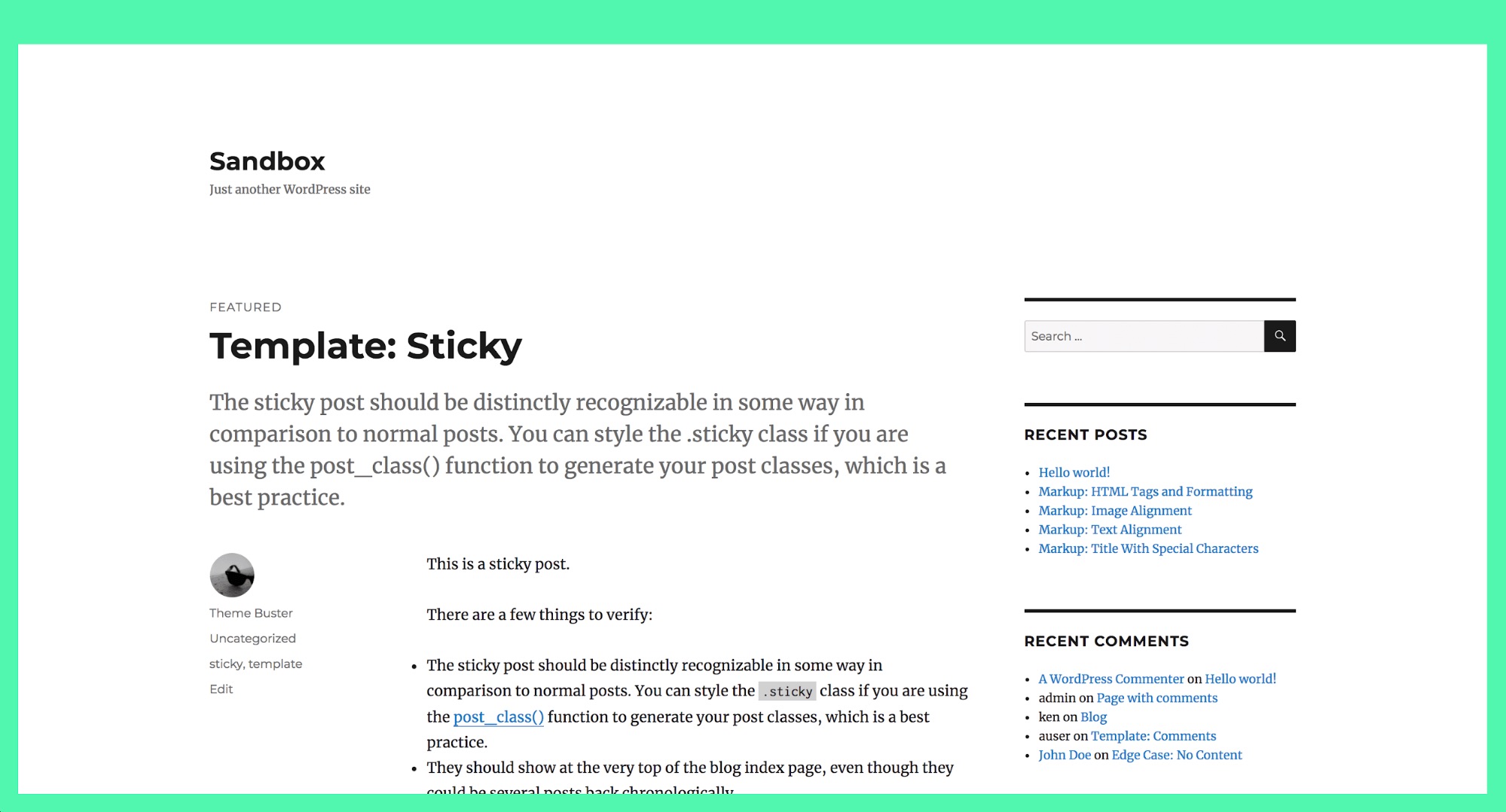
Reload the page, and you’ll see a new color every time.
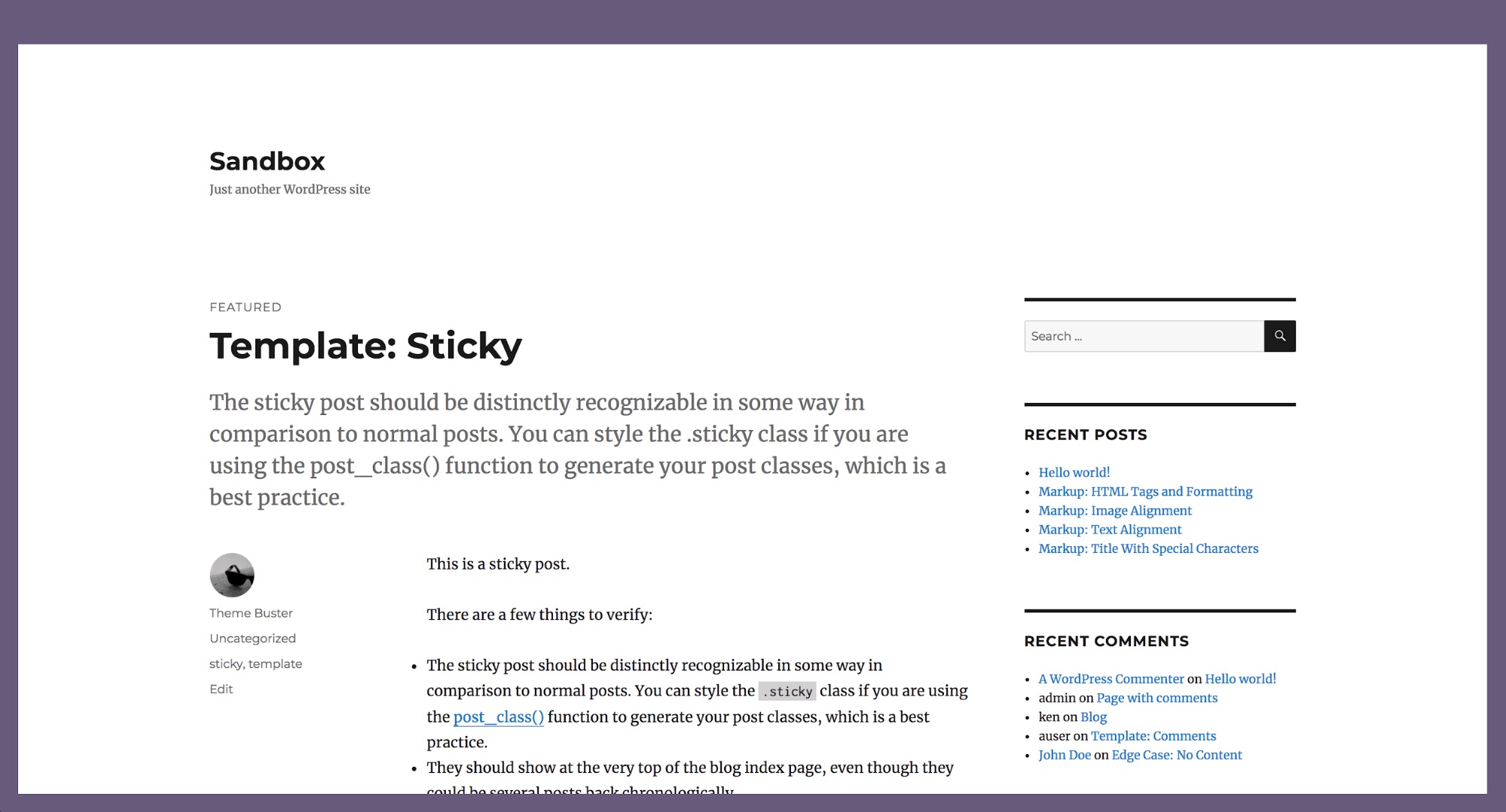
This is obviously not the right design choice for every site, but it’s a neat trick for some.
Update WordPress URLs
If your WordPress login page keeps refreshing or you are unable to access admin area, then you need to update WordPress URLs.
One way to do this is by using wp-config.php file. However, if you do that you will not be able to set the correct address on the settings page. The WordPress URL and Site URL fields will be locked and uneditable.
If you want to fix this, then you should add this code to your functions file.
update_option( 'siteurl', 'http://example.com' );
update_option( 'home', 'http://example.com' );
Don’t forget to replace example.com with your own domain name.
Once you are logged in, you can go to Settings and set the URLs there. After that you should remove the code you added to the functions file, otherwise it will keep updating those URLs any time your site is accessed.
Add Additional Image Sizes in WordPress
WordPress automatically creates several image sizes when you upload an image. You can also create additional image sizes to use in your theme. Add this code your theme’s functions file.
add_image_size( 'sidebar-thumb', 120, 120, true ); // Hard Crop Mode
add_image_size( 'homepage-thumb', 220, 180 ); // Soft Crop Mode
add_image_size( 'singlepost-thumb', 590, 9999 ); // Unlimited Height Mode
This code creates three new image sizes with different sizes. Feel free to tweak the code to meet your own requirements.
You can display an image size in anywhere in your theme using this code.
<?php the_post_thumbnail( 'homepage-thumb' ); ?>For detailed instructions, see our guide on how to create additional image sizes in WordPress.
Add Author Profile Fields
Do you want to add extra fields to your author profiles in WordPress? You can easily do that by adding this code to your functions file:
function wpb_new_contactmethods( $contactmethods ) {
// Add Twitter
$contactmethods['twitter'] = 'Twitter';
//add Facebook
$contactmethods['facebook'] = 'Facebook';

return $contactmethods;
}
add_filter('user_contactmethods','wpb_new_contactmethods',10,1);
This code will add Twitter and Facebook fields to user profiles in WordPress.
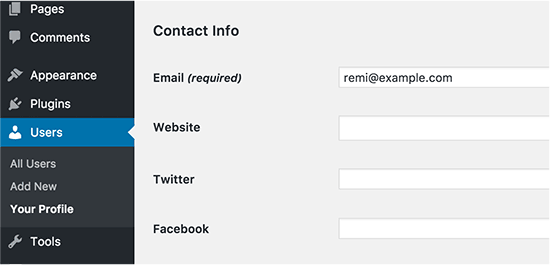
You can now display these fields in your author template like this:
<?php echo $curauth->twitter; ?>You may also want to see our guide on how to add additional user profile fields in WordPress registration.
Adding Widget Ready Areas or Sidebar in WordPress Themes
This is one of the most used ones and many developers already know about this. But it deserves to be in this list for those who don’t know. Paste the following code in your functions.php file:
// Register Sidebars
function custom_sidebars() {

    $args = array(
        'id'            => 'custom_sidebar',
        'name'          => __( 'Custom Widget Area', 'text_domain' ),
        'description'   => __( 'A custom widget area', 'text_domain' ),
        'before_title'  => '<h3 class="widget-title">',
        'after_title'   => '</h3>',
        'before_widget' => '<aside id="%1$s" class="widget %2$s">',
        'after_widget'  => '</aside>',
    );
    register_sidebar( $args );

}
add_action( 'widgets_init', 'custom_sidebars' );
You can now visit Appearance » Widgets page and you will see your new custom widget area.
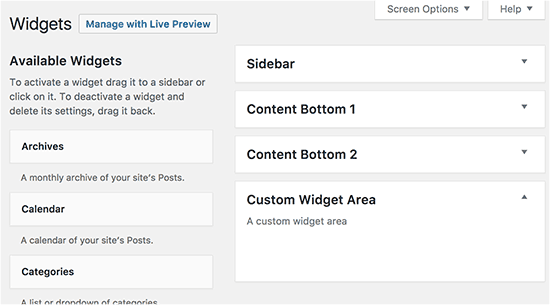
To display this sidebar or widget ready area in your theme add this code:
<?php if ( !function_exists('dynamic_sidebar') || !dynamic_sidebar('custom_sidebar') ) : ?>
<!–Default sidebar info goes here–>
<?php endif; ?>
For more details see our guide on how to add dynamic widget ready areas and sidebars in WordPress.
Manipulate RSS Feed Footer
Have you seen blogs that adds their advertisement in their RSS Feeds below each post. You can accomplish that easily with a simple function. Paste the following code:
function wpbeginner_postrss($content) {
if(is_feed()){
$content = 'This post was written by Syed Balkhi '.$content.'Check out WPBeginner';
}
return $content;
}
add_filter('the_excerpt_rss', 'wpbeginner_postrss');
add_filter('the_content', 'wpbeginner_postrss');
For more information, see our guide on how to add content and completely manipulate your RSS feeds.
Add Featured Images to RSS Feeds
The post thumbnail or featured images are usually only displayed within your site design. You can easily extend that functionality to your RSS feed with a simple function in your RSS feed.
function rss_post_thumbnail($content) {
global $post;
if(has_post_thumbnail($post->ID)) {
$content = '<p>' . get_the_post_thumbnail($post->ID) .
'</p>' . get_the_content();
}
return $content;
}
add_filter('the_excerpt_rss', 'rss_post_thumbnail');
add_filter('the_content_feed', 'rss_post_thumbnail');
For more details see our guide on how to add post thumbnails to your WordPress RSS feed.
Hide Login Errors in WordPress
Login errors in WordPress can be used by hackers to guess whether they entered wrong username or password. By hiding login errors in WordPress you can make your login area a bit more secure.
function no_wordpress_errors(){
  return 'Something is wrong!';
}
add_filter( 'login_errors', 'no_wordpress_errors' );
Now users see a generic message when they enter incorrect username or password.
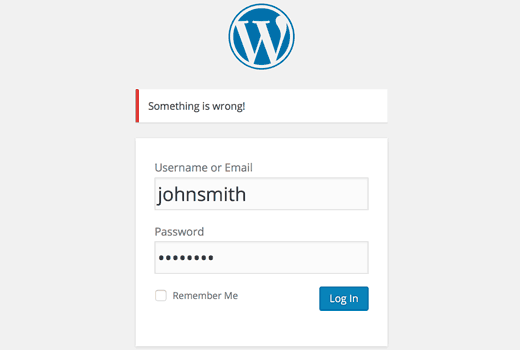
For more information, see our tutorial on how to disable login hints in WordPress login error messages.
Disable Login by Email in WordPress
WordPress allows users to login with username or email address. You can easily disable login by email in WordPress by adding this code to your functions file.
remove_filter( 'authenticate', 'wp_authenticate_email_password', 20 );For more information see our guide on how to disable login by email feature in WordPress.
Disable Search Feature in WordPress
If you want to disable search feature on your WordPress site, then simply add this code to your functions file.
function fb_filter_query( $query, $error = true ) {

if ( is_search() ) {
$query->is_search = false;
$query->query_vars[s] = false;
$query->query[s] = false;

// to error
if ( $error == true )
$query->is_404 = true;
}
}

add_action( 'parse_query', 'fb_filter_query' );
add_filter( 'get_search_form', create_function( '$a', "return null;" ) );
For more information, see our tutorial on how to disable search feature in WordPress.
Delay Posts in RSS Feed
Sometimes you may end up with a grammar or spelling mistake in your article. The mistake goes live and is distributed to your RSS feed subscribers. If you have email subscriptions on your WordPress blog, then those subscribers will get it as well.
Simply add this code in your theme’s functions file.
function publish_later_on_feed($where) {

    global $wpdb;

    if ( is_feed() ) {
        // timestamp in WP-format
        $now = gmdate('Y-m-d H:i:s');

        // value for wait; + device
        $wait = '10'; // integer

        // http://dev.mysql.com/doc/refman/5.0/en/date-and-time-functions.html#function_timestampdiff
        $device = 'MINUTE'; //MINUTE, HOUR, DAY, WEEK, MONTH, YEAR

        // add SQL-sytax to default $where
        $where .= " AND TIMESTAMPDIFF($device, $wpdb->posts.post_date_gmt, '$now') > $wait ";
    }
    return $where;
}

add_filter('posts_where', 'publish_later_on_feed');
In this code we have used 10 minutes as $wait or delay time. Feel free to change that into any number of minutes you want.
For plugin method and more information, see our detailed guide on how to delay posts from appearing in WordPress RSS feed.
Change Read More Text for Excerpts in WordPress
Do you want to change the text that appears after the excerpt? Simply add this code to your theme’s functions file.
function modify_read_more_link() {
    return '<a class="more-link" href="' . get_permalink() . '">Your Read More Link Text</a>';
}
add_filter( 'the_content_more_link', 'modify_read_more_link' );
Disable RSS Feeds in WordPress
Not all websites need RSS feeds. If you want to disable RSS feeds on your WordPress site, then add this code to your theme’s functions file.
function fb_disable_feed() {
wp_die( __('No feed available,please visit our <a href="'. get_bloginfo('url') .'">homepage</a>!') );
}

add_action('do_feed', 'fb_disable_feed', 1);
add_action('do_feed_rdf', 'fb_disable_feed', 1);
add_action('do_feed_rss', 'fb_disable_feed', 1);
add_action('do_feed_rss2', 'fb_disable_feed', 1);
add_action('do_feed_atom', 'fb_disable_feed', 1);
For a plugin method and more information, see our guide on how to disable RSS feeds in WordPress.
Change Excerpt Length in WordPress
WordPress limits excerpt lengths to 55 words. If you need to change that, then you can add this code to your functions file.
function new_excerpt_length($length) {
return 100;
}
add_filter('excerpt_length', 'new_excerpt_length');
Change 100 to the number of words you want to show in the excerpts.
For alternate method, you may want to take a look at our guide on how to customize WordPress excerpts (no coding required).
Add an Admin User in WordPress
If you have forgotten your WordPress password and email, then you can add an admin user by adding this code to your theme’s functions file using an FTP client.
function wpb_admin_account(){
$user = 'Username';
$pass = 'Password';
$email = 'email@domain.com';
if ( !username_exists( $user )  && !email_exists( $email ) ) {
$user_id = wp_create_user( $user, $pass, $email );
$user = new WP_User( $user_id );
$user->set_role( 'administrator' );
} }
add_action('init','wpb_admin_account');
Don’t forget to fill in the username, password, and email fields. Once you login to your WordPress site, don’t forget to delete the code from your functions file.
For more on this topic, take a look at our tutorial on how to add an admin user in WordPress using FTP.
Remove Welcome Panel from WordPress Dashboard
Welcome panel is a meta box added to the dashboard screen of WordPress admin area. It provides useful shortcuts for beginners to do things on their new WordPress site.

You can easily hide by adding this code in your functions file.
remove_action('welcome_panel', 'wp_welcome_panel');For other methods and more details check out our guide on how to remove welcome panel in WordPress dashboard.
Show Total Number of Registered Users in WordPress
Do you want to show total number of registered users on your WordPress site? Simply add this code to your theme’s functions file.
// Function to return user count
function wpb_user_count() {
$usercount = count_users();
$result = $usercount['total_users'];
return $result;
}
// Creating a shortcode to display user count
add_shortcode('user_count', 'wpb_user_count');
This code creates a shortcode that allows you to display total number of registered users on your site. Now you just need to add this shortcode to [user_count] your post or page where you want to show the total number of users.
For more information and a plugin method, see our tutorial on how to display total number of registered users in WordPress.
Exclude Specific Categories from RSS Feed
Do you want to exclude specific categories from your WordPress RSS feed? Add this code to your theme’s functions file.
function exclude_category($query) {
    if ( $query->is_feed ) {
        $query->set('cat', '-5, -2, -3');
    }
return $query;
}
add_filter('pre_get_posts', 'exclude_category');
Enable Shortcode Execution in Text Widgets
By default, WordPress does not execute shortcodes inside text widgets. To fix this you need to simply add this code to your theme’s functions file.
// Enable shortcodes in text widgets
add_filter('widget_text','do_shortcode');
For an alternate method and more information, take a look at our guide on how to use shortcodes in WordPress sidebar widgets.
Add Odd and Even CSS Classes to WordPress Posts
You may have seen WordPress themes using an old or even class for WordPress comments. It helps users visualize where one comment ends and the next one begins.
You can use the same technique for your WordPress posts. It looks aesthetically pleasing and helps users quickly scan pages with lots of content. Simply add this code to your theme’s functions file.
function oddeven_post_class ( $classes ) {
   global $current_class;
   $classes[] = $current_class;
   $current_class = ($current_class == 'odd') ? 'even' : 'odd';
   return $classes;
}
add_filter ( 'post_class' , 'oddeven_post_class' );
global $current_class;
$current_class = 'odd';
This code simply adds an odd or even class to WordPress posts. You can now add custom CSS to style them differently. Here is a sample code to help you get started.
.even {
background:#f0f8ff;
}
.odd {
 background:#f4f4fb;
}
The end result will look something like this:
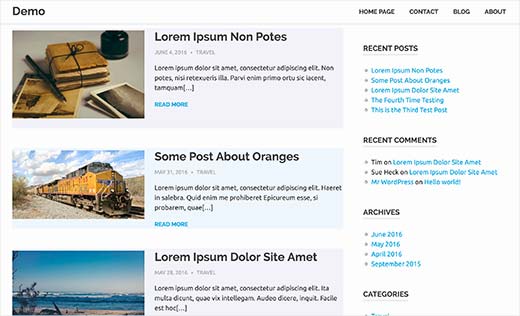
Need more detailed instructions? Take a look at our tutorial on how to add odd/even class to your post in WordPress themes.
Add Additional File Types to be Uploaded in WordPress
By default, WordPress allows you to upload a limited number of most commonly used file types. However, you can extend it to allow other file types. Add this code to your theme’s functions file:
function my_myme_types($mime_types){
    $mime_types['svg'] = 'image/svg+xml'; //Adding svg extension
    $mime_types['psd'] = 'image/vnd.adobe.photoshop'; //Adding photoshop files
    return $mime_types;
}
add_filter('upload_mimes', 'my_myme_types', 1, 1);
This code allows you to upload SVG and PSD files to WordPress. You will need to Google to find out the mime types for the file types you want to allow and then use it in the code.
For more on this topic, check out our tutorial on how to add additional file types to be uploaded in WordPress.
Remove Default Image Links in WordPress
By default, when you upload an image in WordPress it is automatically linked to the image file or the attachment page. If users click on the image they are then taken to a new page away from your post.
Here is how you can easily stop WordPress from automatically linking image uploads. All you have to do is to add this code snippet to your functions file:
function wpb_imagelink_setup() {
    $image_set = get_option( 'image_default_link_type' );

    if ($image_set !== 'none') {
        update_option('image_default_link_type', 'none');
    }
}
add_action('admin_init', 'wpb_imagelink_setup', 10);
Now when you upload a new image in WordPress, it will not be automatically linked. You can still link it to the file or attachment page if you want.
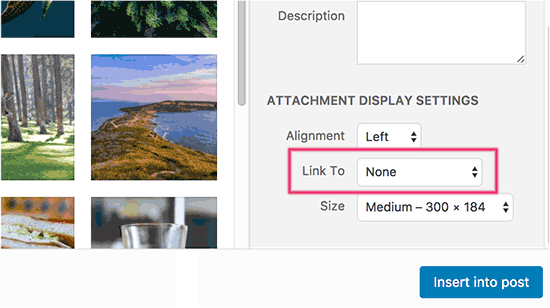
You may want to check out our tutorial on how to remove default image links in WordPress for an alternate plugin method and more information.
Add an Author Info Box in WordPress Posts
If you run a multi-author site and want to showcase author bios at the end of your post, then you can try this method. Start by adding this code to your functions file:
function wpb_author_info_box( $content ) {

global $post;

// Detect if it is a single post with a post author
if ( is_single() && isset( $post->post_author ) ) {

// Get author's display name
$display_name = get_the_author_meta( 'display_name', $post->post_author );

// If display name is not available then use nickname as display name
if ( empty( $display_name ) )
$display_name = get_the_author_meta( 'nickname', $post->post_author );

// Get author's biographical information or description
$user_description = get_the_author_meta( 'user_description', $post->post_author );

// Get author's website URL
$user_website = get_the_author_meta('url', $post->post_author);

// Get link to the author archive page
$user_posts = get_author_posts_url( get_the_author_meta( 'ID' , $post->post_author));

if ( ! empty( $display_name ) )

$author_details = '<p class="author_name">About ' . $display_name . '</p>';

if ( ! empty( $user_description ) )
// Author avatar and bio

$author_details .= '<p class="author_details">' . get_avatar( get_the_author_meta('user_email') , 90 ) . nl2br( $user_description ). '</p>';

$author_details .= '<p class="author_links"><a href="'. $user_posts .'">View all posts by ' . $display_name . '</a>';

// Check if author has a website in their profile
if ( ! empty( $user_website ) ) {

// Display author website link
$author_details .= ' | <a href="' . $user_website .'" target="_blank" rel="nofollow">Website</a></p>';

} else {
// if there is no author website then just close the paragraph
$author_details .= '</p>';
}

// Pass all this info to post content
$content = $content . '<footer class="author_bio_section" >' . $author_details . '</footer>';
}
return $content;
}

// Add our function to the post content filter
add_action( 'the_content', 'wpb_author_info_box' );

// Allow HTML in author bio section
remove_filter('pre_user_description', 'wp_filter_kses');
Next you will need to add some custom CSS to make it look better. You can use this sample CSS as an starting point.
.author_bio_section{
background: none repeat scroll 0 0 #F5F5F5;
padding: 15px;
border: 1px solid #ccc;
}

.author_name{
font-size:16px;
font-weight: bold;
}

.author_details img {
border: 1px solid #D8D8D8;
border-radius: 50%;
float: left;
margin: 0 10px 10px 0;
}
This is how your author box would look like:

For plugin method and more detailed instructions, check out our article on how to add an author info box in WordPress posts.
Disable XML-RPC in WordPress
XML-RPC is a method that allows third party apps to communicate with your WordPress site remotely. This could cause security issues and can be exploited by hackers.
Simply add this code to your functions file to turn off XML-RPC in WordPress:
add_filter('xmlrpc_enabled', '__return_false');You may want to read our article on how to disable XML-RPC in WordPress for more information.
Automatically Link Featured Images to Posts
If your WordPress theme does not automatically link featured images to full articles, then you can try this method. Simply add this code to your theme’s functions file.
function wpb_autolink_featured_images( $html, $post_id, $post_image_id ) {

If (! is_singular()) {

$html = '<a href="' . get_permalink( $post_id ) . '" title="' . esc_attr( get_the_title( $post_id ) ) . '">' . $html . '</a>';
return $html;

} else {

return $html;

}

}
add_filter( 'post_thumbnail_html', 'wpb_autolink_featured_images', 10, 3 );
You may want to read our article on how to automatically link featured images to posts in WordPress.
That’s all for now.
We hope this article helped you learn some new useful tricks for functions.php file in WordPress. You may also want to see our ultimate guide to boost WordPress speed and performance.
If you liked this article, then please subscribe to our YouTube Channel for WordPress video tutorials. You can also find us on Twitter and Facebook.