Webkul is the hook for enterprise businesses and helps enterprises to upscale easily with a wider range of ready to use and highly customisable eCommerce centric products.
[expand title=“mehr lesen…“]
Introduction
Shopware Multi-Seller (Multi-Vendor) Marketplace for Shopware 6 will completely transform your Shopware 6 store into the marketplace. With this module, any customer can become the seller and sell their products. If the customer is already registered at the store then he/she can apply for the seller ship. The seller can manage seller profile, seller products, seller orders. The seller can see the other seller products and information. With this module, the seller can also add product and product variants.
Basic Requirements –
Our Shopware multi-vendor marketplace module is compatible with Shopware 6.x.x.
The module will not work with the lower and higher version of Shopware.
Features
Customer can become a seller.
The admin can set the option to auto-approve the seller.
The admin can set the option to auto-approve the seller’s products.
Seller info on the product page
The admin can check the seller product information.
The admin can set the commission percentage.
Public seller profile having all the information about the seller
The admin can approve/disapprove the seller and seller’s products.
The seller can manage the seller profile, seller products, seller orders.
With this module, The seller can create simple and variant products.
The seller can check other seller’s details.
The code is open-source so it can be easily customized.
What is Shopware?
Shopware is the most used eCommerce platform in Germany. Shopware is an enterprise-level platform based on PHP language. There are 80K plus users who have installed the Shopware for managing their products. Shopware is an open-source eCommerce framework. It is growing fastly with great features like Content Management, Drag-Drop design layout, Multi-warehouse system.
Shopware is now starting to enter new European nations and is making a big impact in the UK. You can check here other Shopware modules – https://store.webkul.com/Shopware.html
Installation Process
Please find here the installation process with terminal:
1) Extract the zip file of the Shopware multi-seller plugin.
2) Upload the folder WebkulMVMarketplace to custom/plugins directory of your Shopware 6.
3) Now open the Shopware 6 application in the Terminal.
4) Run the following commands in the Terminal
1234
./bin/console plugin:refresh (Insert and list the plugins)./bin/console plugin:install –activate WebkulMarketplace (Installing and activating the plugin)./bin/console c:c (Clearing the cache)./psh.phar administration:build (Building the application)
5) Now refresh the administration.
Please find here the manual installation process:
1) Extract the zip file of the plugin.
2) Goto your Shopware 6 installation backend panel and navigate to Setting -> System -> Plugins after that you can find all the installed plugin in it.
For installing the plugin, the user can click on the Upload Plugin button. The user can upload the plugin zip(WebkulMVMarketplace) here.
3) After uploading the plugin zip, the user can see the plugin in the list.
4) Now the user can click on the install icon to install the Shopware multi-seller plugin.
5) After the installation of the plugin, the user can click to activate the plugin.
Shopware Multi-Seller Marketplace Configuration
After installing the Shopware multi-seller plugin, the user can navigate to Setting -> System -> Plugin.
After clicking on the plugin, the user can see all the installed plugin in the Shopware. The user can click on the “…” icon for the configuration option of the plugin.
After clicking on the Config icon, the user can see these options:
Auto Approve Sellers – The admin can enable the option to auto-approve the sellers.
Auto Approve Products – The admin can enable this option to auto-approve the seller’s products.
Commission – Here the admin can set the commission percentage. Let us say as an example there is a seller S1 and his/her product(P1) price is 100 USD so on the sale of product P1 seller will get 80 USD and admin will get 20 USD as commission if the admin will set the 20% commission.
After entering the details, the admin can click on the Save button.
Shopware Multi-Seller Marketplace Admin Panel
For the Shopware Multi-Seller Marketplace admin option, the user can see the marketplace icon at left menus in Shopware6 backend.
Here the user can see these options:
Sellers – The admin can see all the sellers register at the Marketplace. The admin can see these details in the seller’s grid.
Name
Email
Is Apply
Total Orders
Created at
The admin can approve and disapprove the seller from the admin panel and click on the Is approved button to disapprove the seller.
The admin can also check the seller details after clicking on the seller’s name.
After clicking on the seller name, the admin can see these seller’s details.
General
Addresses
Orders
Products – Here the admin can see all the products created by the sellers in the marketplace. The admin can see the details of the products.
In the seller’s product grid, the admin can see these details.
Product’s Title
Seller’s Name
Seller’s Email
Price
Stock
Status
Product’s View
The admin can see the seller product details and edit them. All the changes will be reflected in the front-end.
The admin can also click on the “view” button to see the products at the front-end.
Orders – Here the admin can see the seller’s order created by the customer in the marketplace.
The admin can see these details in the seller’s product order grid.
Marketplace Product
Quantity
Total amount
Seller’s Earning
Commission Amount
Created at
Shopware Multi-Seller Marketplace Front-end
After the installation of the Shopware6 multi-seller module, there will be an icon “Marketplace” on the right side of the screen.
The customer can click on the Marketplace Sellers icon under the Marketplace. After that, the customer will be able to see all the marketplace sellers registered at the marketplace.
The customer can see the details of the seller after clicking on the seller profile.
Here the customer can see the seller details like these:
About – Here the customer can check about the seller.
Products – Here the customer can see the seller products and details.
Reviews – Here the customer can check the seller reviews.
The customer can also login to review the seller. The customer can enter these details:
Ratings – The customer can rate the seller in the marketplace.
Summary – The customer can also add a summary of the review.
Review – The customer can add a review of the seller.
Social Links – Here the customer can check the seller’s social media profiles.
Shopware Multi-Seller Marketplace Seller Login
The customer can register himself/herself at the Shopware multi-seller marketplace after clicking on the Register button at the front-end. If the customer already registered at the Marketplace then he/she can click on the login button.
After clicking on the “Register” Button the customer can see the registration page. Here the customer can enter his/her details.
The customer can become the seller after selecting the “Yes” option in the “Select “Yes” if you want to become a seller and sell your products on the store.“.
After the registration, the seller can log in to the Shopware multi-seller Marketplace.
After the login, the seller can see these seller’s options.
Add Products
Your profile
Your orders
Marketplace Sellers
Your Products
Your Profile –
After the login, the seller can add the seller profile. The seller has to enter these details.
Store Logo
Store Banner
Social links
Store Owner
Store Slug
Owner Name
Store Title
Store Description
After adding the store profile details, the seller profile will be looking like this.
Add Products –
The seller can add the product at the Marketplace. The seller has to enter these details to create the products.
Product name
Price
Product Number
Product Stock
Description
Product Tax
Product Manufacturer
Media Files
Product categories
After saving the products, the seller can see the products in the marketplace seller’s products grid.
Your Products –
The seller can see all the products created by him/her.
The seller can add a new product here and also edit the product. To edit the product, the seller has to click on the “Edit” button. Here the seller can see the options.
Update Product – Using this option, the seller can update the created products.
View Product – The seller can click on the “View Product” to check the product on the product page. On the product page, the seller can also see his/her details.
Variant Generator – The seller can add/generate the variant of the product here.
For creating the variant, the seller can select the “Product Groups” after that the seller can see the seller group option for creating the product variant.
For example: If the seller will select the “Colour” product group then he/she will be able to see the “Group Options” like “Green”, “White”, “Blue”.
After that, the seller can click on the “Update Variant” to generate the variant products.
Here the seller can edit the details of the variant products –
Price – The seller can change the price of each variant product.
Stock – The seller can change the stock of each variant product.
The seller can click on the “Update” button to update the variant products. The seller can also delete the variant product. After the changes, the seller can see the product at the front-end like this.
Your Orders –
Here the seller can see the order created by the customer. The seller can see these order details:
Date – The seller can see the product order date by the customer.
Order Number – The seller can check the order number.
Order Status – The seller can check the order status.
Payment Status – Ther seller can check the payment status like open/closed.
Action – The seller can perform the action View and Hide the order details.
After clicking on the view order icon, the seller can see these details:
Customer name
Customer email
Payment Method
Shipping Method
Commission Amount
Seller earnings
Total amount
Marketplace Sellers –
With this option, the seller can check all the registered sellers and his/her details in the marketplace.
Schnelles Einrichten | Sicheres Testen | Risikofreies Arbeiten | Ohne Gefahr für Deinen Umsatz Mit der Staging / Testumgebung von 8mylez erstellst…
[expand title=“mehr lesen…“]
Die Staging ist nun unter der normalen Shop Url mit einem zusätzlichen „/staging“, bzw. Ihrem gewählten Verzeichnisnamen erreichbar. Beispiel: www.meinshop.de/staging
Sie können sich dann mit den normalen Daten unter www.meinshop.de/staging/admin anmelden und loslegen!
Sollte dies nicht möglich sein kann es daran liegen, dass..
– Sie bei Nginx Servern eine entsprechende Shopware Konfiguration für die Staging hinterlegen müssen – eine Modifikation der .htaccess Datei bei Apache Servern für Fehler sorgen kann
Weitere Informationen
Wenn Sie eine zweite Staging Umgebung einrichten, bitte darauf achten, dass Sie die erste Staging Umgebung in der Konfiguration ausschließen
Sie können die Staging Umgebung vor fremden Zuschauen schützen, in dem Sie das Verzeichnis mit einem sogenannten htaccess Schutz versehen, wenn Sie einen Apache Webserver nutzen
Für Nginx Webserver gibt es einen ähnlichen Schutz, dieser muss in der Konfiguration gespeichert werden. Hierbei kann Ihnen Ihr Hoster helfen.
Wenn der Staging Shop nur von Suchmaschinen nicht erkannt werden soll, können Sie eine robots.txt Datei anlegen oder eine bereits bestehende bearbeiten
Sollte das Plugin nach einer Minute keine Erfolgsmeldung ausgeben, liegt das wahrscheinlich an Ihrem Timeout des PHP Skripts. Sie müssen den Timeout in der php.ini Datei erhöhen.
Eine Staging Umgebung kann nur gelöscht werden, wenn die entsprechende Datenbank und der dazugehörige Ordner leer sind. Dies kann auf der Detailansicht einer Staging durchgeführt werden.
Installationsanleitung
Das Plugin muss im Backend hochgeladen werden und kann direkt installiert werden
Plugin aktivieren
Bei Ihrem Hoster eine Staging Datenbank anlegen
Neue Staging Umgebung unter „Kataloge“ erstellen
Synchronisierung starten
Die Staging ist nun unter der normalen Shop Url mit einem zusätzlichen „/staging“, bzw. Ihrem gewählten Verzeichnisnamen erreichbar. Beispiel: www.meinshop.de/staging
Sie können sich dann mit den normalen Daten unter www.meinshop.de/staging/admin anmelden und loslegen!
Sollte dies nicht möglich sein kann es daran liegen, dass..
– Sie bei Nginx Servern eine entsprechende Shopware Konfiguration für die Staging hinterlegen müssen – eine Modifikation der .htaccess Datei bei Apache Servern für Fehler sorgen kann
Weitere Informationen
Wenn Sie eine zweite Staging Umgebung einrichten, bitte darauf achten, dass Sie die erste Staging Umgebung in der Konfiguration ausschließen
Sie können die Staging Umgebung vor fremden Zuschauen schützen, in dem Sie das Verzeichnis mit einem sogenannten htaccess Schutz versehen, wenn Sie einen Apache Webserver nutzen
Für Nginx Webserver gibt es einen ähnlichen Schutz, dieser muss in der Konfiguration gespeichert werden. Hierbei kann Ihnen Ihr Hoster helfen.
Wenn der Staging Shop nur von Suchmaschinen nicht erkannt werden soll, können Sie eine robots.txt Datei anlegen oder eine bereits bestehende bearbeiten
Sollte das Plugin nach einer Minute keine Erfolgsmeldung ausgeben, liegt das wahrscheinlich an Ihrem Timeout des PHP Skripts. Sie müssen den Timeout in der php.ini Datei erhöhen.
Eine Staging Umgebung kann nur gelöscht werden, wenn die entsprechende Datenbank und der dazugehörige Ordner leer sind. Dies kann auf der Detailansicht einer Staging durchgeführt werden.
[/expand]
Amazon Dropdown Menü Professionell
Amazon Dropdown Menü Professionell
Wenn Sie dieses Menü installiert haben, müssen Sie das Shopware Plugin
Support durch coolbaxTestenDemo Quelloffen 363 Downloads Verfügbare Bundles Sticky Menü + Amazon Dropdown Menü 89,99 € * Statt 109,00 € * Bundles anzeigen Dieses Plugin ist für Shopware 6 verfügbar Voraussichtlich verfügbar ab Juli 2020 Dieser Hersteller reagiert schnell auf Supportanfragen Bewerten Plugin melden
Wenn Sie dieses Menü installiert haben, müssen Sie das Shopware Plugin „Erweitertes Menü“ deaktivieren.
Amazon Dropdown Menü Professionell
Sie sind ein großer Fan von dem Aufbau und der Darstellung des Amazon Menü? Jetzt haben Sie die Möglichkeit diese Darstellung in Ihren Shop einzusetzen und nach ihren Vorstellungen anzupassen. Einen Platzmangel bei der Darstellung der Hauptkategorien kann es nicht mehr geben, da diese zusammengefasst unter dem Punkt „Alle Kategorien“ angezeigt werden. Gestalten Sie jede einzelne Hauptkategorie individuell mit Bildern und Texten. Zudem können die Layouteinstellungen, welche in dem Plugin festgelegt wurden, noch einmal individuell für jede einzelne Hauptkategorie geändert werden. Der entstandene Freiraum im Header kann mit bis zu fünf ausgewählte Shopseiten ausgefüllt werden.Im Demoshop testen Das Handbuch ansehen
Funktionsumfang & Vorteile
Darstellung von unbegrenzte viele Hauptkategorien
Integration von Bildern mit Positionsangabe
Zwei Möglichkeiten Texte hinzuzufügen
Badge hinterlegen (z.B. NEU oder SALE)
Fünf ausgewählte Shopseiten können prominent im Header angezeigt werden
Weitere Einstellungsmöglichkeiten:
Höhe und Spaltenlayout des Submenü (ein- bis vierspaltig)
Diverse Farbeinstellungen für das Menü
Layouteinstellungen für Kategoriespalten (ein- bis vierspaltig)
Geben Sie Ihren Kunden einen Hinweis
Badge´s weisen auf die wichtigsten Erneuerungen innerhalb einer Kategorie hin. Egal ob ein Hauptmenüpunkt neu hinzugefügt wurde oder ob gerade eine heiße Sale-Aktion stattfindet. Mit den Badge´s informieren Sie Ihre Kunde bereits bei der Sichtung der Navigationsstruktur darüber. Schriftfarbe, Hintergrundfarbe und das Schlagwort können individuell gewählt werden. Pro Hauptnavigationspunkt ist nur ein Badge vorgesehen.
Bilder gehen über das Menü hinaus
Ansprechende Bilder bzw. Werbung kann im Submenü eingefügt und mittels Positionsangabe platziert werden. Durch diese Positionsangabe ist es möglich, das Bild über das Submenü erscheinen zu lassen um somit einen schönen Effekt zu schaffen. Ein kleiner Tipp von uns. Verwenden Sie Bilder mit transparentem Hintergrund.
Platz für Informationen
Im Submenü haben Sie zwei Möglichkeit Texte anzuzeigen. In den Hauptkategorien haben Sie die Möglichkeit einen Text im Feld „Custom HTML“ einzufügen. Dieser kann z.B. in einer extra Spalte angezeigt werden. Mit der zweiten Möglichkeit, können Sie eine Unterkategorie näher beschreiben. Diese Möglichkeit funktioniert allerdings nur auf der 3ten Ebene.
Fragen Sie haben Fragen zum Plugin oder zur Einrichtung? Dann schauen Sie gerne bei unserem Handbuch vorbei oder Sie schreiben uns direkt an: info@coolbax.de
Gekaufte Shopware Templates installieren und individuell anpassen
Gekaufte Shopware Templates installieren und individuell anpassen
Mit den Shopware Templates im Community Store gibt es eine kostengünstige Alternative den eigenen Shop individueller zu gestalten. Besonders beliebt ist z.B. das Responsive Template von Conexco. Das Template nutze ich in einigen Shops als Grundlage für weitere indviduelle Designanpassungen. Vorteile
Mit den Shopware Templates im Community Store gibt es eine kostengünstige Alternative den eigenen Shop individueller zu gestalten. Besonders beliebt ist z.B. das Responsive Template von Conexco. Das Template nutze ich in einigen Shops als Grundlage für weitere indviduelle Designanpassungen. Vorteile sind z.B.:
Optimierte Darstellung für mobile Endgeräte
Kompatibel mit den Shopware Einkaufswelten
Kompatibel mit einigen Drittanbieter-Plugins
Kompatibel mit Shopware Premium Plugins (Live-Shopping, Bundle, Bonus-System, etc.)
Ständige Weiterentwicklung und Optimierung
Gerade die Unterstützung der Einkaufswelten und Plugins ist keine Selbstverständlichkeit und sollte vor dem Kauf eines Templates überprüft werden. Ansonsten könnten zusätzliche Kosten entstehen, wenn ein Plugin nicht funktioniert oder die Darstellung fehlerhaft ist. Die meisten Plugins werden nämlich nur für das Standard-Template von Shopware entwickelt, da der Entwickler das verwendete Template ja nicht kennt.
[expand title=“mehr lesen…“]
Installation und Aktivierung von gekauften Templates
Gekaufte Templates werden über den Shopware Community Store geladen und über den Plugin-Manager installiert. Die Aktivierung hängt vom verwendeten Template ab. Entweder muss das Template im Plugin aktiviert und konfiguriert werden oder es erscheint ein neuer Menüpunkt unter Einstellungen. Infos dazu findet man meist in der Dokumentation vom Template.
Nachdem ein Template installiert und konfiguriert wurde, sollte der Shop-Cache gelöscht werden, damit keine zwischengespeicherten Ansichten angezeigt werden.
Individuelle Anpassungen beim gekauften Template
Die original Template-Dateien sollten nicht verändert werden, da die Anpassungen beim nächsten Update garantiert überschrieben werden.
Um ein Template updatesicher zu verändern, erstellt man in dem Order „templates/_local“ eigene Template-Dateien und überschreibt oder erweitert so das Design des aktiven Templates.
Beispiel 1 – Eigene CSS-Datei integrieren
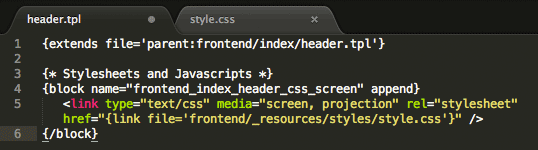
Schritt 1: Datei „header.tpl“ im Order „templates/_local/frontend/index/“ anlegen. Die Ordner „frontend“ und „index“ müssen auch angelegt werden, sofern nicht vorhanden.
Schritt 2: Folgenden Quellcode in die Datei „header.tpl“ einfügen. Dadurch binden wir die CSS-Datei „style.css“ in das Template ein.
Schritt 3: Datei „style.css“ im Order „templates/_local/frontend/_resources/styles“ anlegen. Die Ordner „_resources“ und „styles“ müssen auch angelegt werden, sofern nicht vorhanden.
Schritt 4: Eigene CSS-Styles in der Datei „style.css“ einfügen.
Schritt 5: Shop-Cache leeren, damit die Änderungen sichtbar werden.
[/expand]
shopware 6 storefront
shopware 6 storefront
All you need to know about the new Shopware 6 storefront
Taking new paths means adjusting to new opportunities! It means critically examining long-standing approaches, thinking outside the box…
[expand title=“mehr lesen…“]
All you need to know about the new Shopware 6 storefront
Taking new paths means adjusting to new opportunities! It means critically examining long-standing approaches, thinking outside the box and trying out new things. The experience gained from previous versions, in particular, allows developing a software solution in a sensible way to meet the changing requirements of an already fast-moving market. Otherwise, a system risks turning into a dusty monolith.
Shopware 6 has a lot of thought put into it, leaving much room for new things. Since Shopware is not only a software solution for users but also a sort of framework for developers, the requirements and needs of the developer community are also an important topic for further development.
While the lion’s share is under the surface, as is so often the case in the software business, and is usually hidden from the majority of people’s eyes, e-commerce is also about the design, the look & feel, the performance, etc. — a good reason to break new ground with Shopware 6 also in the frontend!
Shopware 6 is based entirely on the tried-and-tested PHP framework called Symfony. Considering the above, it makes perfect sense that the Twig template engine, also developed by SensioLabs, has found its way into software, replacing the previously used Smarty. But standardisation doesn’t stop here — on the contrary!
A Bootstrap CSS framework instead of in-house development, Sass instead of LESS, object-oriented JavaScript (ES6), Webpack… the list is long and so are the resulting advantages and changes.
Keep reading to find out what changes you can expect and what is important in the Shopware 6 storefront.
Martin Schindler, BSc in Computer Science (Software Architect at dasistweb GmbH)
The components of the Shopware 6 storefront
In order to understand the bigger picture, you often have to take a look at the individual components and how they interact first. For this reason, we are going to examine the individual building blocks of the new storefront, starting with the three elementary layers of a web-based application and the new tools and standards used. I will try to make references to the various counterparts from Shopware 5, to help you better understand why some things suddenly run differently than before.
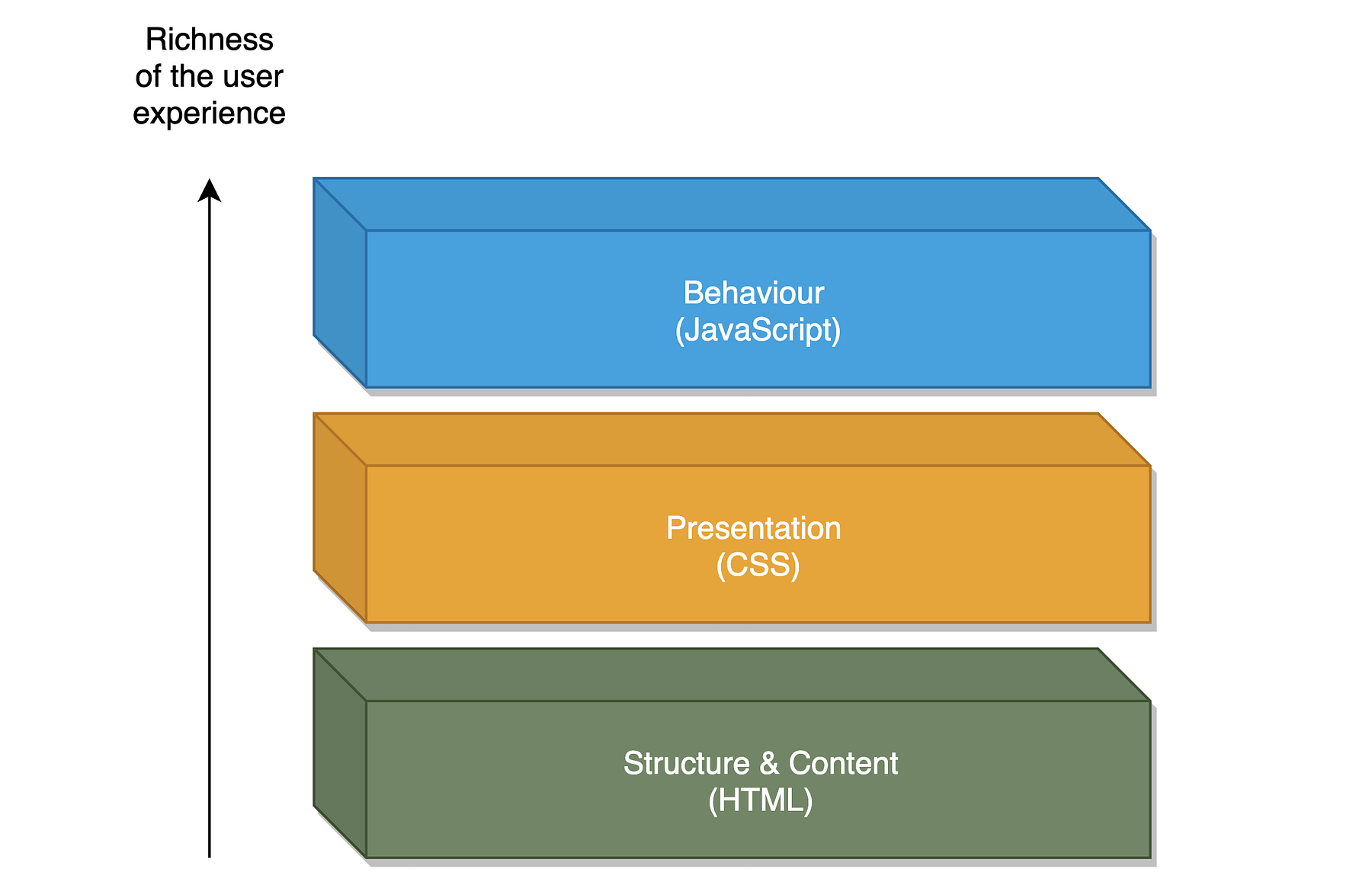
The three typical layers of a web application
Structure layer (structure & content)
The foundation of a web frontend is the structure layer — in its simplest form consisting of static HTML markup, divided into logical or content-related sections. In order to meet increased technical requirements, “template engines” are used that take over the rendering of HTML markup with the help of templates. This is nothing new for anyone who has already worked with an earlier version of Shopware.
What is new, however, is that from now on Twig will be deployed as the template engine, whereas Smarty was used in previous versions including Shopware 5. Also provided from the makers of Symfony, it is a purely logical conclusion for reasons of integration and interoperability in the Symfony cosmos alone. Without going too much into the details, Twig is considered one of the fastest, safest and most flexible of the established PHP-based template engines on the market.
And again: new (or better “different”) technologies come with an initial hurdle — the syntax in Twig, for example differs from the well-known Smarty syntax. Useful information on how to use Twig, its features, extensibility and coding standards can be found in the official documentation.
The most important aspects of working with Twig in the storefront
Debugging — A simple var_dump on an object in the view could bring Smarty to its knees. With Twig, things are completely different — fortunately! Thanks to the integrated VarDumper component and Symfony’s DebugBundle, all variables in the storefront can now be output smoothly:
An additional priority was placed on the clarity of the debug output. Thanks to visual preparation, the confusing “print_r” output is now a thing of the past:
Scalar data types, arrays and objects can easily be debugged using {{ dump() }}
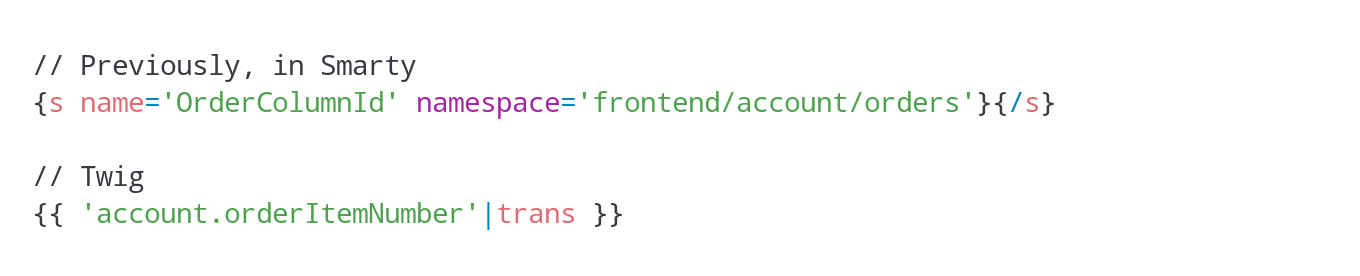
Text blocks — Text blocks have also been modified. While a specially developed snippet function was used and each text block was identified by a combination of name and namespace in the Smarty context, things now work slightly different in Twig:
Using the “trans” filter, which comes with Symfony and Twig by default, text blocks can be placed anywhere in the template and consumed from the underlying data source (e.g. messages.de.yaml for German text blocks, messages.en.yaml for English translations).
Extensions & include — Twig provides great technical solutions to ensure extensibility. The ability to extend the scope of functions through custom tags, filters, functions and tests by using a purely object-oriented approach and the possibility to perform unit tests on these is an attractive tool for implementing individual requirements, especially for projects in the enterprise sector.
By the way, this tool is also used by the new storefront. Since plugins and individual themes form a multi-level inheritance hierarchy that is not supported by Twig by default, the developers have implemented two Shopware-specific TokenParsers that are used in the storefront with the “sw_include” and “sw_extends” tags. These two should be used instead of the default “include” and “extends” tags, thus ensuring that template blocks can be overwritten, e.g. by plugins.
For example, if you want to have one view inherited from another, make sure to use “sw_extends”:
The same applies if you want to include a template file in a view. The “sw_include” tag should also be used in this case:
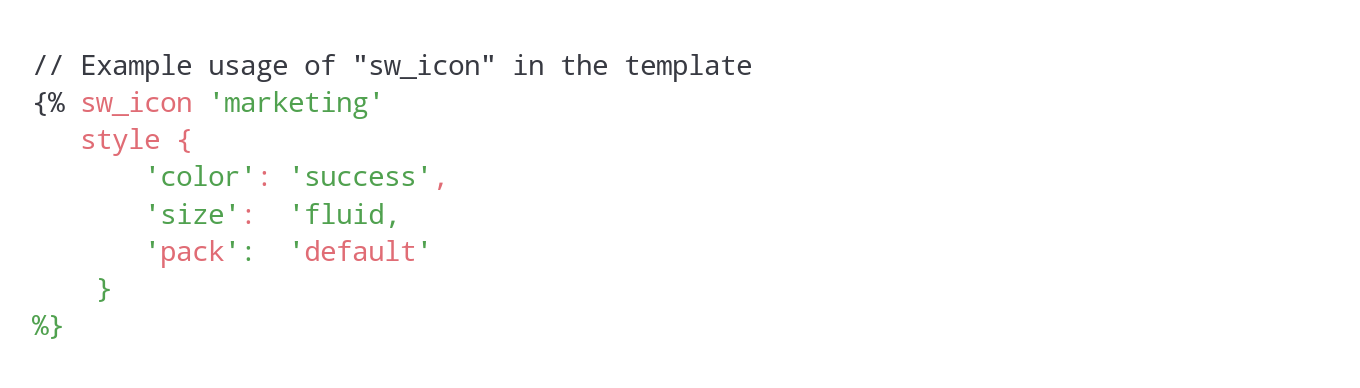
Icons & thumbnails — Of course, implementing little helpers to make daily working life easier for template developers is always a good idea. That is why “sw_icon” was created, allowing you to conveniently configure and load SVG icons:
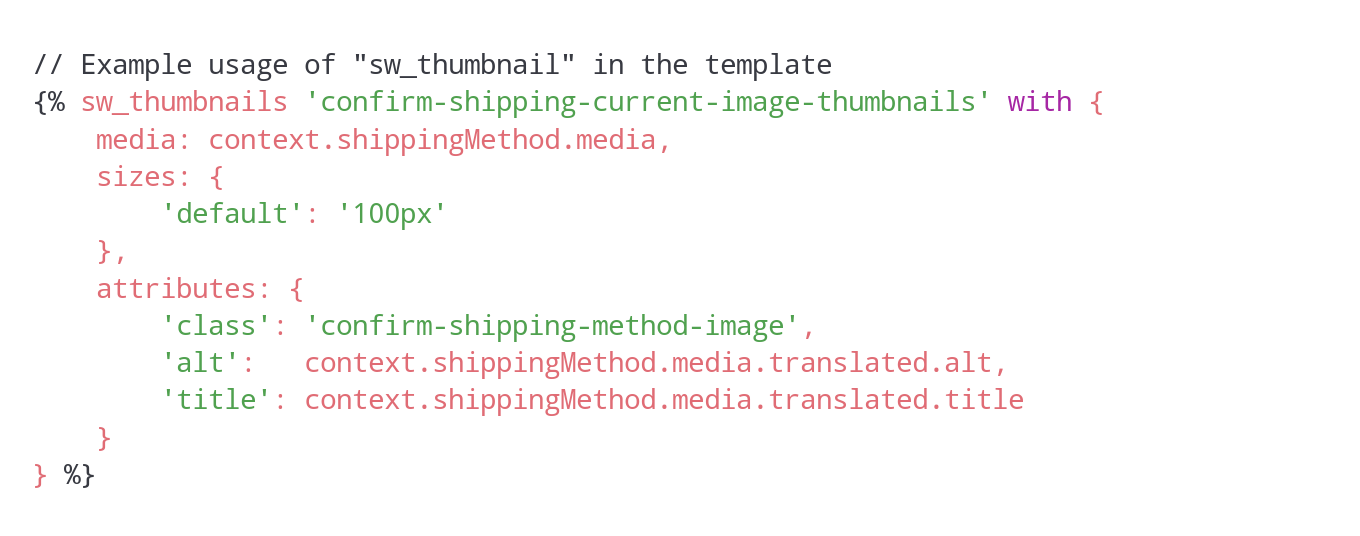
Using “sw_thumbnails”, which renders a <img> tag with correctly configured “srcset” and “sizes” attributes based on the provided parameters, is just as convenient:
Of course, the organisation of the Twig files in the storefront and their structure has somewhat changed compared to Shopware 5. However, there are no great technical intricacies here that would have to be explained in greater detail. So much for the structure layer for now.
Presentation layer
In today’s world, an online shop without a modern, user-centric look & feel has become unimaginable. The presentation layer allows us to bind the look of an application to HTML markup using CSS.
The rule of thumb here is: the more general the CSS definitions are, the more detached they are from the actual markup. The more specific they are, the faster changes in markup can lead to unwanted, visible side effects.
Since nowadays CSS is much more than just applying styles to selectors, CSS preprocessors have been in use for many years. These allow you to use syntactic rules and language constructs to make CSS creation more efficient.
To be more specific, a custom style sheet language extends the limited functionality of CSS through variables, functions, mixins and more. Since the browser can only process CSS, the generated files are pre-compiled by the preprocessor into valid CSS. This compilation is then loaded in HTML markup and interpreted by the browser.
Switching the preprocessor: from LESS to Sass
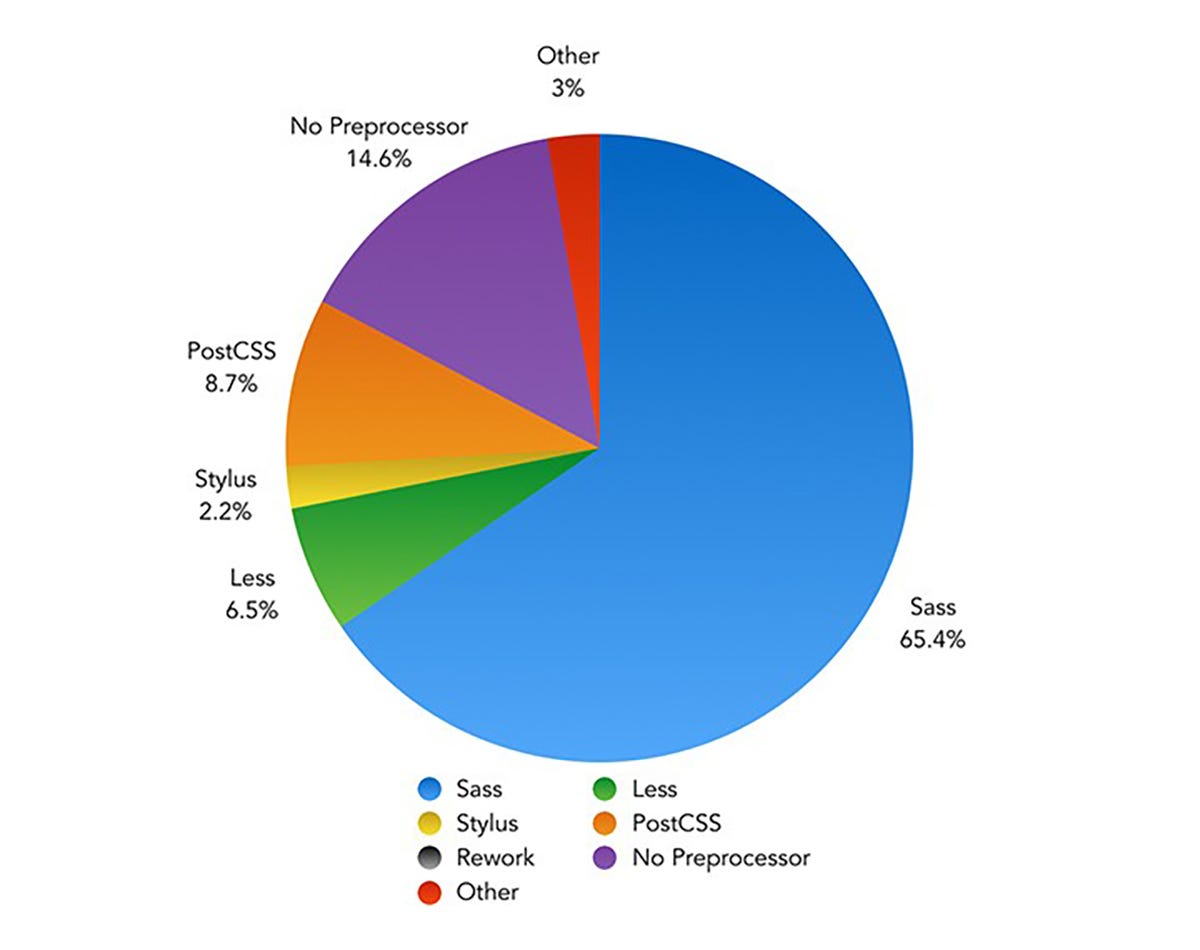
Anyone who has worked with Shopware 5 already knows the LESS style sheet language. With Shopware 6, a sensible switch to Sass has been made. When comparing frameworks, languages or tools, as usually, the devil is in the detail — the most famous CSS preprocessors (Sass, LESS, Stylus and PostCSS) differ about 20% from each other in terms of their functionality, and the remaining 80% are congruent. That is why, to claim that Sass is better, faster and cooler than LESS would be a purely subjective statement.
However, one criterion that speaks for the switch to Sass, and one that is not so easy to dismiss, is its widespread use. The diagram below shows the prevalence of various CSS preprocessors as determined by a survey. Sass clearly stands out from the competition:
Another argument for switching from LESS to Sass is the CSS framework. After comprehensive evaluation, the decision was made to use the established Bootstrap frontend CSS framework for Shopware 6 due to its similar market leadership compared to the alternatives available. With version 4 of the framework, source files are now written as Sass files (more precisely, using the SCSS syntax style for “Sassy CSS”, i.e. with the *.scss file extension). This is another aspect that strongly supports the switch to Sass.
Bootstrap 4: Taking advantage of source files
As mentioned above, the Bootstrap source files are available as Sass files. That’s why you can use the variables, mixins and functions defined in them for your own purposes. Information on which these are and how they can be used can be found in the official documentation.
Well, this is nothing really new here… after all, the already defined LESS constructs could be reused in Shopware 5. So, what exactly is the specific advantage for the new storefront?
Documentation of a de-facto standard — Instead of in-house implementations, the use of Bootstrap means that we relying, in a sense, on an already existing standard. Functions, mixins, etc. have already been tested thousands of times by the community alone, are regularly improved and extended, and are documented in detail. This is a circumstance that allows for rapid, targeted progress when making adjustments to the storefront.
Reduction to the essentials — Since many issues and problems (e.g. grid system, various components, browser-specific peculiarities, etc.) can already be considered addressed and solved thanks to the Bootstrap framework, the focus in the implementation of the new storefront is on what is really essential. By using the source files and also explicitly those components that are actually required in the storefront, the compilation, i.e. the CSS file created at the end, can also be reduced to the essentials. This, in turn, improves performance and the loading time of the storefront.
Keeping your SCSS DRY — DRY (Don’t Repeat Yourself) is a well-known paradigm of software engineering. It means that redundant code should be avoided or at least reduced.
Thanks to variables, mixins and functions as well as the ability to inherit from existing selectors (using the @extend command), definitions and constructs can be easily reused. Since Bootstrap brings along a large portfolio, new buttons, labels, notifications, grids, etc. can be created quickly and easily. This is a great advantage, especially if you need to quickly implement the rough structure of a view, but also, of course, when it comes to fine-tuning.
Extensibility — Thanks to the widespread use of Bootstrap, also in other web applications and systems, numerous third-party modules can already be consumed today and used for your own purposes in the storefront. Of course, certain necessary adjustments can never be avoided entirely. After all, the frontend is naturally very specific, or it depends on the respective project scope. However, in order to achieve success or even technical breakthroughs quickly, it is an essential advantage of using the Bootstrap 4 CSS framework in the new Shopware 6 storefront.
Corporate identity — Anyone who has already worked with Bootstrap knows that there are many variables that invite the user to create custom configurations. This way, you to make key adjustments in a central location, in order to adapt the entire look & feel to your needs. Thanks to the “!default” keyword variables within the Bootstrap source files, this is a pretty handy thing, especially with regard to the “skins” in the new storefront. The included “Shopware Skin” is a collection of SCSS files that is layered above the Bootstrap style sheet definitions, decorating the default theme of the new storefront in the Shopware CI. If it is not needed in a specific project, this skin can easily be removed or replaced by a custom skin.
Organisation is half the battle
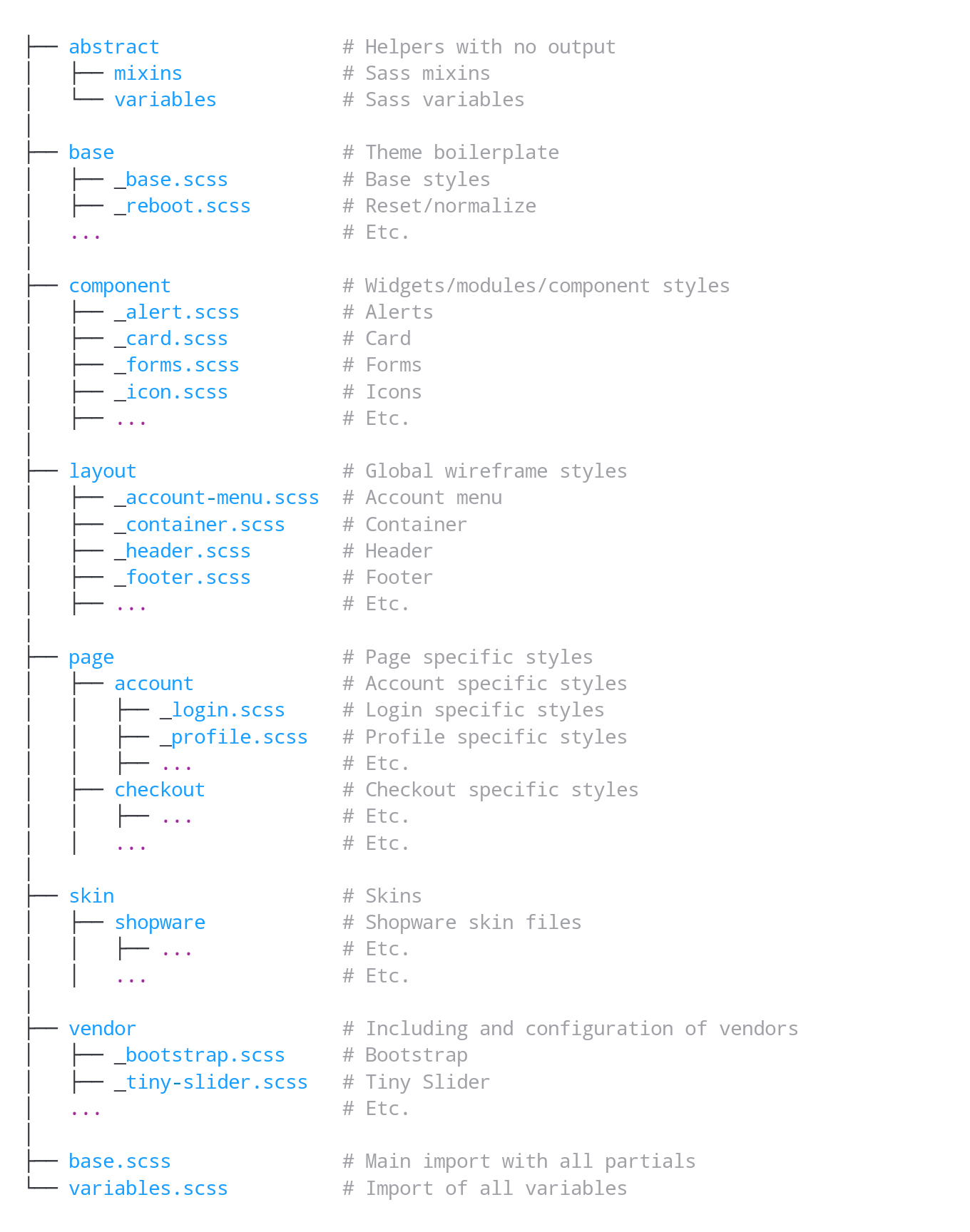
In order to structure the organisation of folders and files — an issue that is omnipresent in a software project — the new storefront basically follows the 7–1 pattern, an organisational pattern that has established itself in the Sass environment over time. Here, various responsibilities are logically categorised in seven separate sections (or folders).
The sample organisational structure of SCSS files below illustrates this categorisation of responsibilities:
This clear division not only allows for a clearer organisation of styles, it also reminds developers to be more conscious when making adjustments and to assign new files to the appropriate subject area in a more consistent manner.
Advice Components that are coupled rather loosely to other files can be easily migrated to other themes or even projects.
Behavioural layer
Last but not least, the structure and presentation layers are covered with the behavioural layer. This level offers everything users need for interactive operation. In the case of a web application, this is primarily done by the JavaScript (JS) scripting language.
In recent years, JS has aroused create interest in the programming world because the standardised ECMAScript language core, which JavaScript is based on, allows object-oriented code to be generated in a syntax similar to other class-based programming languages. This functionality is available as of version 6. And since the OOP-like syntax results in the use of principles found in software architecture (clean code principles, inheritance, composition, separation of concerns, etc.), the quality awareness in this area has also clearly changed for the better.
It quickly became clear that we will rely on ES6 and a class-based syntax for the development of the new storefront. This also led to the creation of various tools — i.e. helper classes — that take on a wide range of tasks in the new storefront. I would like to briefly highlight the most important ones below:
ViewportDetection — Whereas the “StateManager” was responsible for all sorts of things in Shopware 5, the Shopware 6 storefront is now equipped with a dedicated ViewportDetection class. In conjunction with CSS viewports provided by Bootstrap, this class allows you to react to the change of the viewport via specially created events:
In addition, there are separate events for each viewport and methods to restore the current viewport. It should be noted that this class deals exclusively with this issue (separation of concerns).
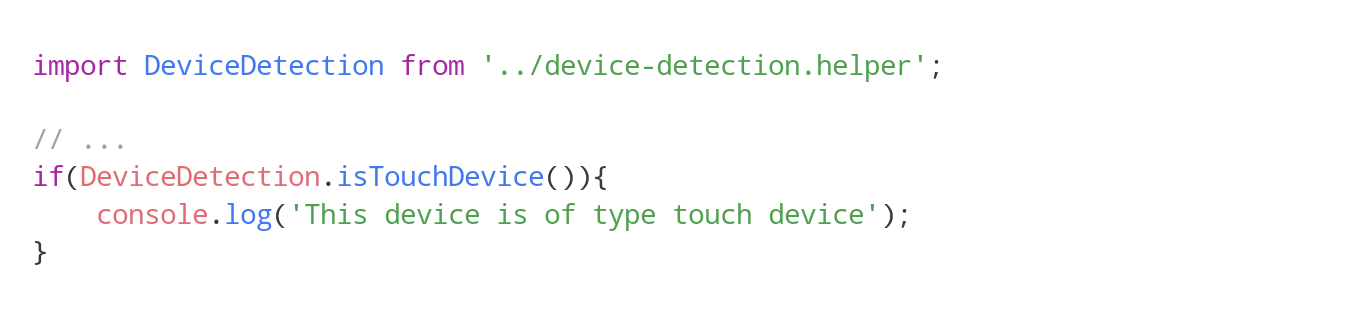
DeviceDetection — The DeviceDetection class, in turn, has the task of making Boolean expressions about the device used with the help of small, static functions. For example, if you want to find out whether the current device is a TouchDevice, you can do this easily as follows:
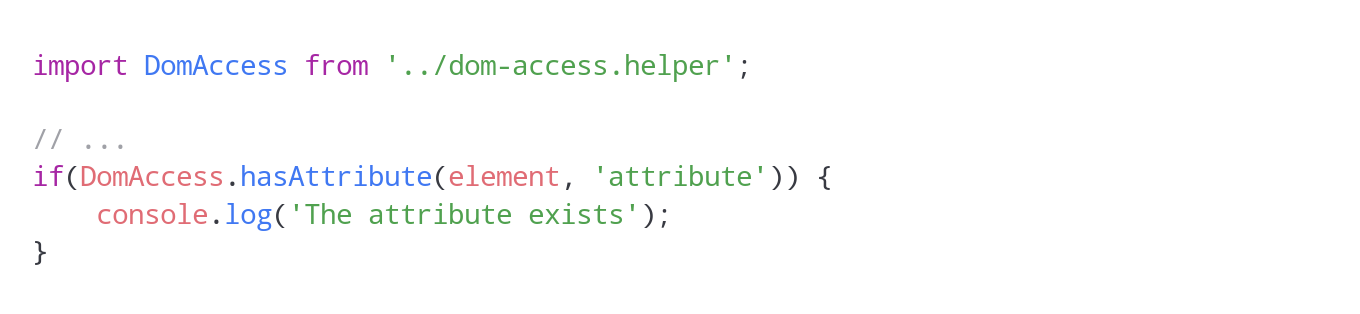
DomAccess — You want to quickly and reliably check whether a node element has an attribute? This is, among other things, the task of the DomAccess helper class. The class abstracts access to node elements, attributes and data attributes, and ensures that reliable results are returned.
Another example illustrates the additional convenience that this helper class provides. If you want to implement a class that should only be executed if the corresponding selector can be found as a condition in HTML markup, this can be done as follows:
An exception will be thrown internally if the specified query selector doesn’t return a result. This can then be responded to with try/catch. As a third optional parameter, it is also possible to switch off the strict mode so that a Boolean FALSE is returned if an element is not found. This makes checks for “!== typeof undefined”, etc. a thing of the past. Checking for “!== FALSE” will always be sufficient.
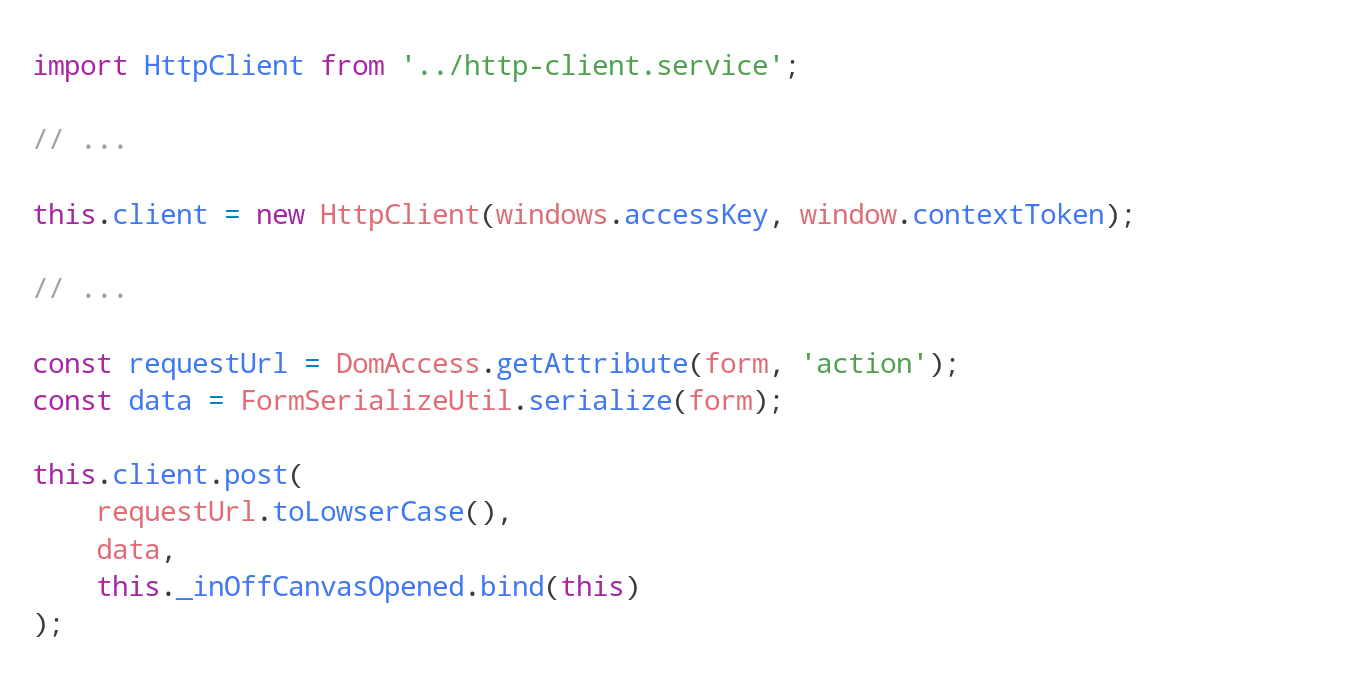
HttpClient — Anyone who has already worked with asynchronous requests in JavaScript knows what matters: cancelling existing, still active requests before placing a new one, using the correct request method, specifying callbacks, ContentType, and even setting access credentials using the new Shopware 6 API. Since all of this has now been moved behind an easy-to-use interface, the HttpClient class provides the basis for “easy-to-use” HTTP request handling without much overhead, as shown in the following extract:
Numerous other little helpers and features in the new storefront ensure a clear, modern JS code base that lets the developer achieve desired results quickly and adapt the functionality to his project-specific requirements.
Webpack module bundler
Finally, I would like to briefly touch on something that is essential for the use of the new technologies mentioned above from various points of view. While Grunt was still used as a task runner, e.g., to compile CSS and JS code in Shopware 5, Shopware 6 now comes with the Webpack module builder. International giants such as Airbnb, Trivago, Adobe, Slack and others have been relying on Webpack for some time now, and the module bundler has slowly but surely become a “state of the art” technology.
Thanks to Webpack, we can convert the JS code written in ECMAScript 6 into cross-browser-compatible JavaScript using the Babel compiler, for example. Moreover, thanks to numerous plugins and loaders, Webpack can handle the compilation of SCSS to CSS, the creation of browser-specific CSS instructions (autoprefixing), the minimisation of the compilations, etc.
This also opens up other opportunities that are particularly interesting for the enterprise sector. Just to venture a quick look into the future, Webpack allows realising “entry points” — small, bundled packages, so to speak, that only contain the code that is actually required for each view. This reduces unwanted side effects during customisation, the file sizes of CSS and JS compilations as well as the load for the client, i.e. the browser, because only the JavaScript is running that used in the context of the respective view. Of course, this is not possible without making further modifications. How these are implemented and the effort involved, however, will be explained in another article.
The fact that you have different requirements for the system environment in the development stage of a project compared to production mode can also be taken into account in the storefront area thanks to the flexible Webpack configuration. The available configuration files are:
webpack.base.config.js — contains the basic configuration that applies to all available environments
webpack.dev.config.js — contains the configurations that apply to Webpack in “dev” or “watch” mode
webpack.hot.config.js — configurations that explicitly apply to the built-in Webpack HMR mode
webpack.prod.config.js — a configuration specifically customised for production mode
The basic configuration and the specific configuration are merged for each set environment (dev|watch|hot|prod). This results in the final configuration of Webpack, which ultimately generates JS and CSS files, along with the necessary resources (fonts, images, etc.), which are pulled into the build folder and made available.
Detailed documentation is available on the official Webpack website and can be consulted for making your own adjustments.
Conclusion
Much has happened since Shopware 5. Some things have changed fundamentally to move with the times — to ensure more quality, more distinction, more possibilities — also in the storefront. This inevitably requires a certain degree of adjustment. However, it is the only way to bring Shopware 6 and the projects to be realised with it to a new level. The market is evolving, and so are the requirements. And the new Shopware 6 storefront gives you and your project all the options you need to continue to meet future needs.
Bachelor of Computer Science & Software Architect with a weakness for perfection and the awareness of human imperfection. Passionate mountain biker ????
Bachelor of Computer Science & Software Architect with a weakness for perfection and the awareness of human imperfection. Passionate mountain biker ????
Mit Shopware 6 wurde viel umgedacht, viel Raum für Neues geschaffen. Weil Shopware nicht nur eine reine Software für Anwender ist, sondern ebenso als eine Art Framework für Entwickler fungiert, sind auch die Anforderungen und Bedürfnisse aus der Developer Community ein wichtiges Thema bei der Weiterentwicklung.
Während sich der Löwenanteil wie so oft im Software-Business unter der Oberfläche befindet und sich zumeist den Blicken der Mehrheit entzieht, dreht sich im E-Commerce vieles aber auch um Optik, Look & Feel, Performance und Co. …Read more · 14 min read
Assume there is a new feature you are about to develop for your project or your customer’s wish. There are plenty of different ways how to deploy your code, how to handle several versions or to keep quality by using code analysis tools, for example. Deployment pipelines (CI/CD) allow you to take your brand new feature live. And in case of emergency they will easily let you rollback to previous state. But what if your feature requires changes to your database’s schema or data?
This is why “migrations” exist. Migrations are a concept or even more an additional functionality put on top of the database abstraction layer (DBAL) and object-relational mapping (ORM). It allows you to implement a some kinda “versioning” for your database schema and even your data itself. …Read more · 5 min read
This is the story of my good old friend, let’s call him John. He is software developer with body and soul. And he’s smart, of course he is! John is able to solve almost all the tasks assigned to him. But John also has a dark side… cleanliness is not his key strength. And I’m neither talking about he wouldn’t follow the company’s clean desk policy nor about his personal hygiene. Not at all! He is pretty messy about his work. Unfortunately! Because…
Not infrequently, unclean work leads to long-term errors. As always when talking about software, the biggest part lies beneath the water surface. No matter if it is complexity, the LOC (lines of code) itself or even the riskiest parts of its business logic. …Read more in The Startup · 9 min read
As you might know there is a bunch of loosely typed programming languages like PHP, Perl or JavaScript. Even if there might be tons and tons of questions and answers to talk about regarding this topic, this article is not about strong or weak typing, implicit or explicit type casting or anything like that.
This article is about non performers, average performers and top performers… about professionals and those who think they ‘d be… about programmers like you and me, no matter if you are novice or expert.
While being a web developer focusing on frontend development and my years as a software engineer for PHP based applications as well as an architect designing software and reviewing millions of lines of code I was in the happy position to gain lots of experience about how programmers develop. Some bloom over the years like a delicate plant. Others stand up, say “hi” and immediately brighten the room. It is so dependent on a variety of extrinsic and intrinsic influences, I could talk years about. …
Shopware 6 is an open source eCommerce platform realised by the ideas and the spirit of its community. – shopware/platform
[expand title=“mehr lesen…“]
Templates
The storefront theme is using Boostrap. Therefore the template structure is a derivative of the bootstrap starter template. The templating engine used is Twig. For styling SASS is used as CSS preprocessor. The bundling and transpiling of the javascript is done with Webpack.
block, element, sectionParts of the experience worldscomponentShared content templates form the basis of the pages.layoutLayout templates. Navigation, header and footer content templates are located here.pageThe concrete templates rendered by the page controllers. This directory contains full page templates as well as private local includes and the pagelet ajax response templates if necessary. utilitiesTechnical necessities used across the content and across all domain concepts.base.html.twigBase page layout of the storefront. This file mainly includes header and footer templates from /layout and provides blocks for the /page templates to overwrite.
Page templates
The page directory contains the entry points which are referenced by page controllers and rendered through the Twig engine. The structure is derived from the page controller naming.
Inside the directories are the actual templates rendered by the storefront. The inner structure depends on the domain context.
Override and extend templates
Due to the plugin and theme system in shopware it is possible that one storefront template gets extended by multiple plugins or themes, but Twig does not allow multi inheritance out of the box. Therefore we created custom twig functions sw_extends and sw_include, that work like twigs native extends or include, except that they allow for multi inheritance. So it is really important to use the sw_extends and sw_include, instead of the native extends and include.
sw_extends
To inherit a template file, you need to use {% sw_extends %}.
Example:
{# YourPlugin/Resources/views/storefront/layout/header/logo.html.twig #}

{% sw_extends '@Storefront/storefront/layout/header/logo.html.twig' %}

{# Add an <h2> with underneath the logo image block #}
{% block layout_header_logo_image %}
    {{ parent() }}
    <h2>Additional headline</h2>
{% endblock %}
sw_include
If you build your own feature and you need e.g. an element to display the price of the current product you can include existing partials with sw_include like this.
Example:
{# MyPlugin/Resources/views/storefront/page/product-detail/index.html.twig #}

<div class="my-theme an-alternative-product-view">
    ...

    {% block component_product_box_price %}
        {# use sw_include to include template partials #}
        {% sw_include '@Storefront/storefront/component/product/card/price-unit.html.twig' %}
    {% endblock %}

    ...
</div>
Inheritance order
The order of the inheritance is determined by the order you set in the theme.json of your active theme.
Styles Top Level
The stylesheets are written in SASS. The organization is inspired by the 7-1 pattern structure.
The base.scss is the global include file which references styles that are written as an extension of the bootstrap base. For further information just take a look at the excellent description at sass-guidelines.es.
Scripts Top Level
The storefront includes a set of JavaScript plugins providing different functionalities to the storefronts templates on the client side. The plugins are written as ES6 classes in vanilla JavaScript. Additionally since bootstrap is distributed with the jQuery library the storefront also contains this library.
The filter can be found in /src/Storefront/Framework/Twig/Extension/SwSanitizeTwigFilter.phpExamples:{{ unfilteredHTML|sw_sanitize }}Uses the default config{{ unfilteredHTML|sw_sanitize( {'div': ['style', ...]}, true ) }}allow only div tags + style attribute for div




 Voraussichtlich verfügbar ab Juli 2020 Dieser Hersteller reagiert schnell auf Supportanfragen