shopware – multiseller – marketplace – shopware 6


[expand title=“mehr lesen…“]

Installation Process

Please find here the installation process with terminal:

1) Extract the zip file of the Shopware multi-seller plugin.

2) Upload the folder WebkulMVMarketplace to custom/plugins directory of your Shopware 6.

upload plugin

3) Now open the Shopware 6 application in the Terminal.

4) Run the following commands in the Terminal

shopware

./bin/console plugin:refresh (Insert and list the plugins) ./bin/console plugin:install –activate WebkulMarketplace (Installing and activating the plugin) ./bin/console c:c (Clearing the cache) ./psh.phar administration:build (Building the application)

1234 ./bin/console plugin:refresh (Insert and list the plugins)./bin/console plugin:install –activate WebkulMarketplace (Installing and activating the plugin)./bin/console c:c (Clearing the cache)./psh.phar administration:build (Building the application)

5) Now refresh the administration.

Please find here the manual installation process:

1) Extract the zip file of the plugin.

2) Goto your Shopware 6 installation backend panel and navigate to Setting -> System -> Plugins after that you can find all the installed plugin in it.

my plugin

For installing the plugin, the user can click on the Upload Plugin button. The user can upload the plugin zip(WebkulMVMarketplace) here.

3) After uploading the plugin zip, the user can see the plugin in the list.

upload plugin

4) Now the user can click on the install icon to install the Shopware multi-seller plugin.

install

5) After the installation of the plugin, the user can click to activate the plugin.

activate

Shopware Multi-Seller Marketplace Configuration

After installing the Shopware multi-seller plugin, the user can navigate to Setting -> System -> Plugin.

plugin

After clicking on the plugin, the user can see all the installed plugin in the Shopware. The user can click on the “…” icon for the configuration option of the plugin.

config

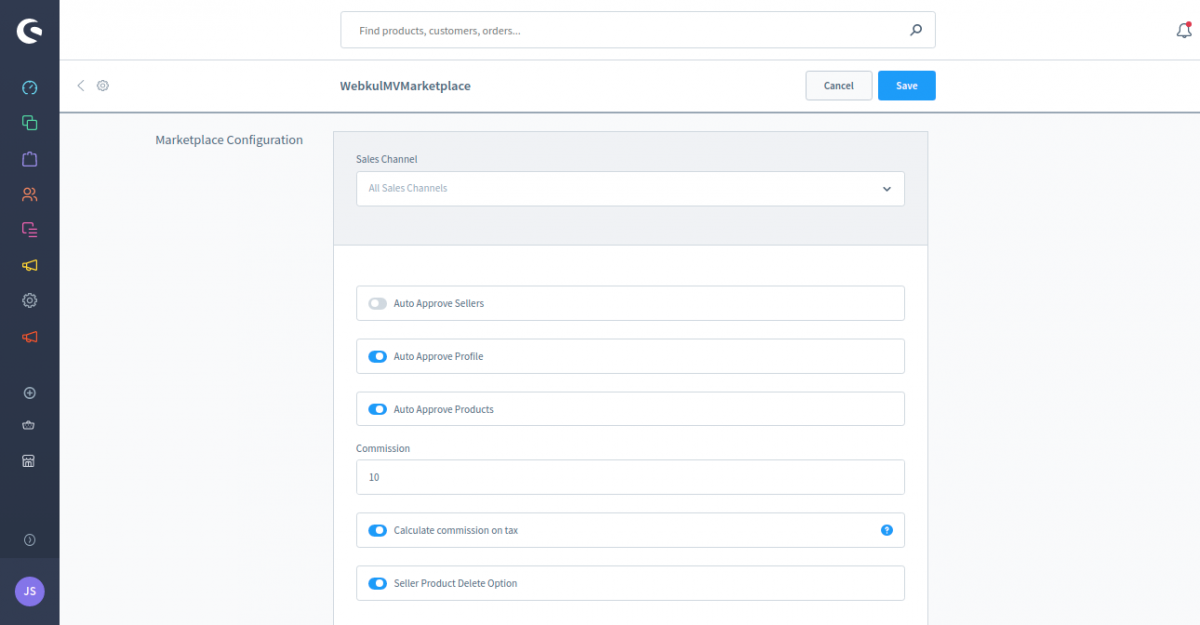
After clicking on the Config icon, the user can see these options:

Auto Approve Sellers – The admin can enable the option to auto-approve the sellers.

Auto Approve Products – The admin can enable this option to auto-approve the seller’s products.

Commission – Here the admin can set the commission percentage.

Calculate commission on tax – Enable this option so that the admin’s commission will be calculated on the product’s unit price.

Seller Product Delete Option – Enable this option so that the seller can delete the seller product.
Shopware_Administration

After entering the details, the admin can click on the Save button.

Shopware Multi-Seller Marketplace Admin Panel

For the Shopware Multi-Seller Marketplace admin option, the user can see the marketplace icon at left menus in Shopware6 backend.

Sellers

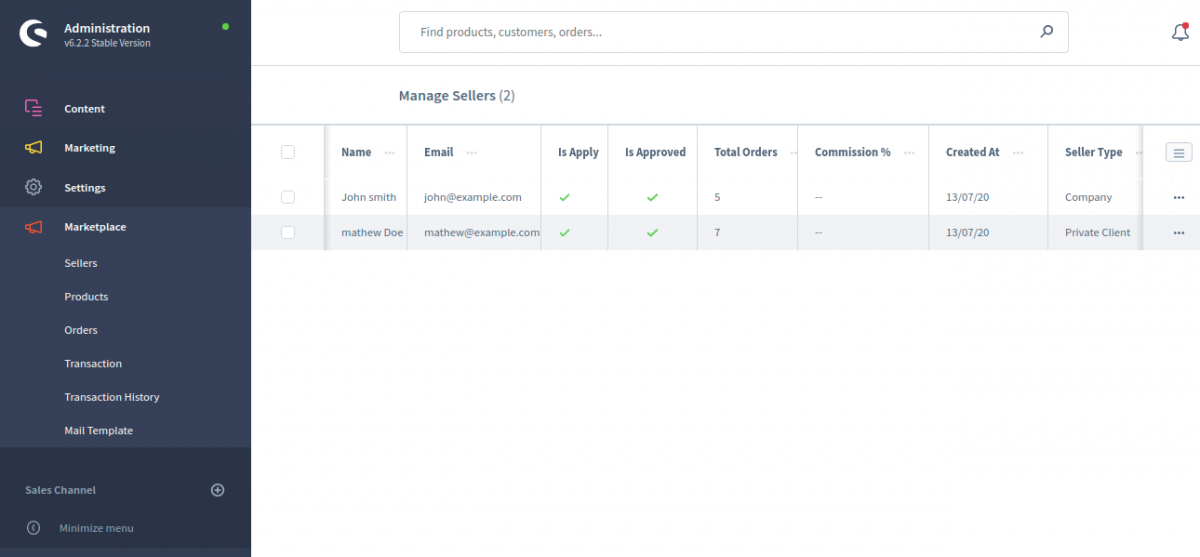
Under the seller menu option, the admin can manage all the sellers like – Approve/Disapprove them. Admin can see all the sellers register at the Marketplace. The admin can see these details in the seller’s grid.

  • Name
  • Email
  • Is Apply
  • Is Approved
  • Total Orders
  • Commission
  • Created at
  • Seller Type
Sellers_Shopware_Administration

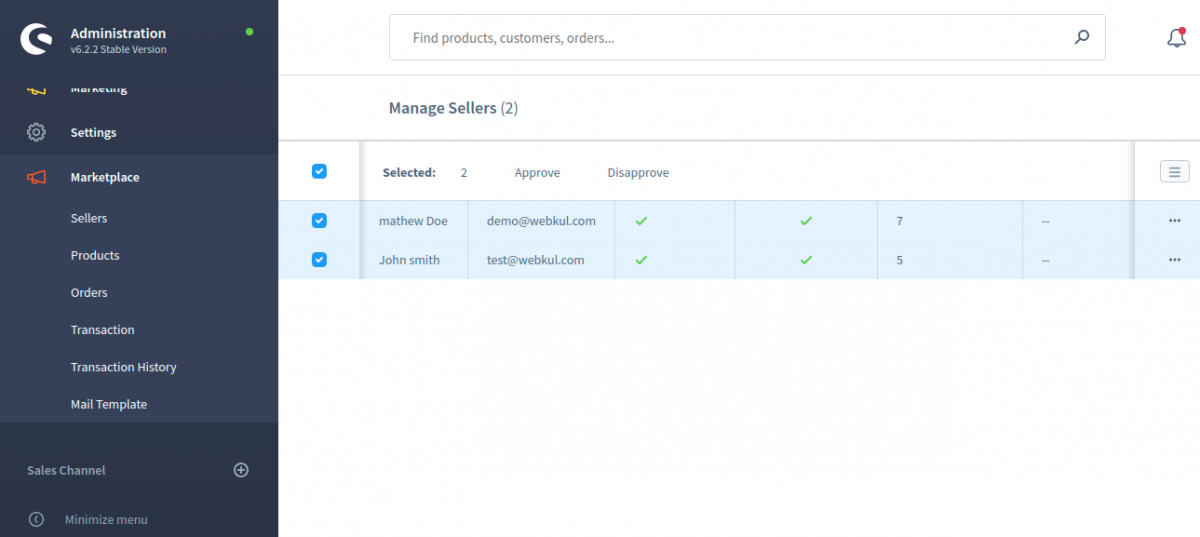
The admin can select particular and also select mass to approve or disapprove sellers on the Marketplace.

In this below image, you can see that admin selects mass seller to approve or disapprove on the marketplace.
Sellers_Shopware_Administration-4

The admin can click on the edit (…) button. Here admin can config the seller information.

Commission Percentage– Admin can define the Commission Percentage for the seller. The admin can set the commission for all the sellers. When the product will be purchased, the admin can earn the profit as a commission.

Store Logo – Admin can see the seller store logo, and can delete also.

Banner logo – Admin can see the seller store Banner logo, and can delete also.

Owner logo – Admin can see the seller store Banner logo. and can delete also.

Store logo, Banner logo and Owner logo can upload anyone in the seller end.

Sellers_Shopware_Administration-1

Profile Status – The admin can enable or disable seller profile on the Marketplace.

Seller Status – The admin can enable or disable sellers status on the Marketplace.

Sellers_Shopware_Administration-2

Products

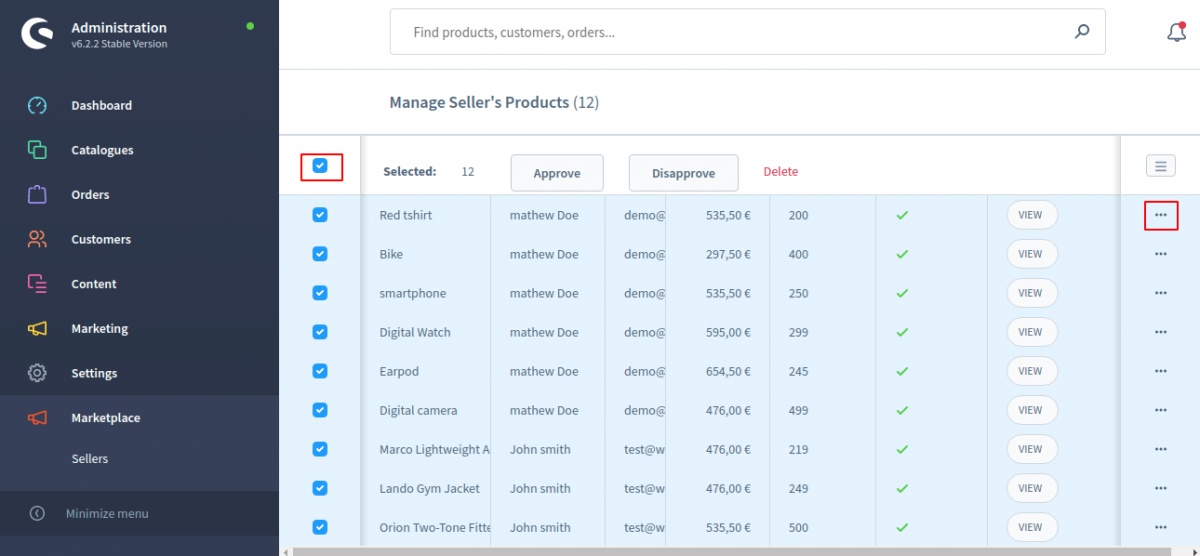
Under this section, the admin will be able to approve one by one and also able to mass approve the store products to the seller’s account as required. Here, the admin can see all of the store products as well.

In the products, the admin can select delete, approve, and disapprove the product one by one and also select mass product in one time.

In the seller’s product grid, the admin can see these details.

  • Product’s Title
  • Seller’s Name
  • Seller’s Email
  • Price
  • Stock
  • Status
  • Product’s View

In the below image, you can see that the admin has selected mass product to Approve, Disapprove or delete the product.
Products_Shopware_Administration-3

The admin can also click on the “view” button to see the products at the front-end.

Products_Shopware_Administration-2

Orders

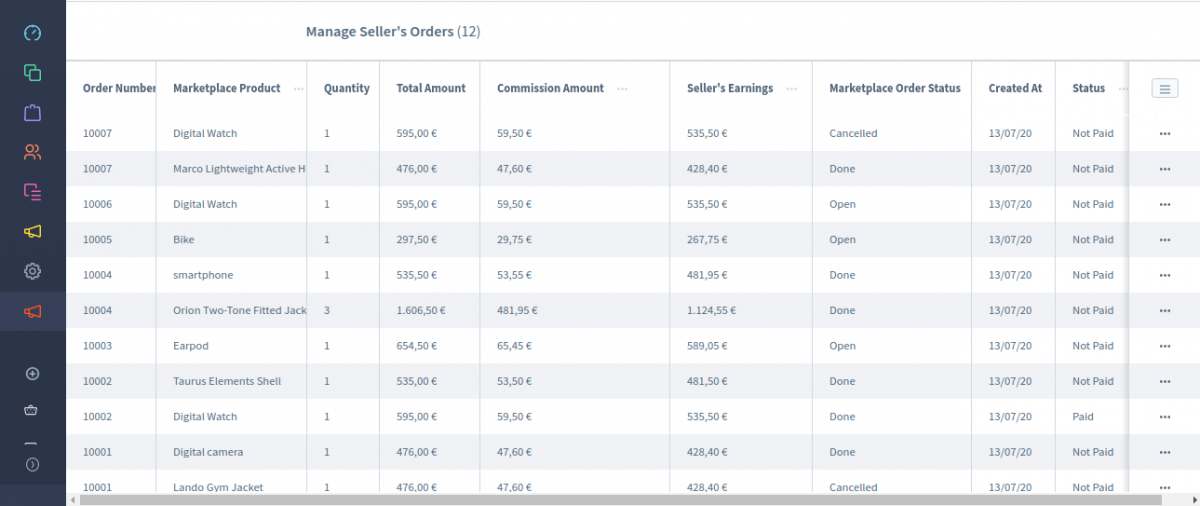
Under this section, the admin can see the orders made for marketplace products. From here, the admin can view orders, change order status for each product. Also, can click on the View button, the admin will be able to see the order details of a particular order and can make changes to order as well.
Orders_Shopware_Administration

The admin can see these details in the seller’s product order grid.

  • Order number
  • Marketplace Product
  • Quantity
  • Total amount
  • Commission Amount
  • Seller’s Earning
  • Marketplace order status
  • Created at
  • Status

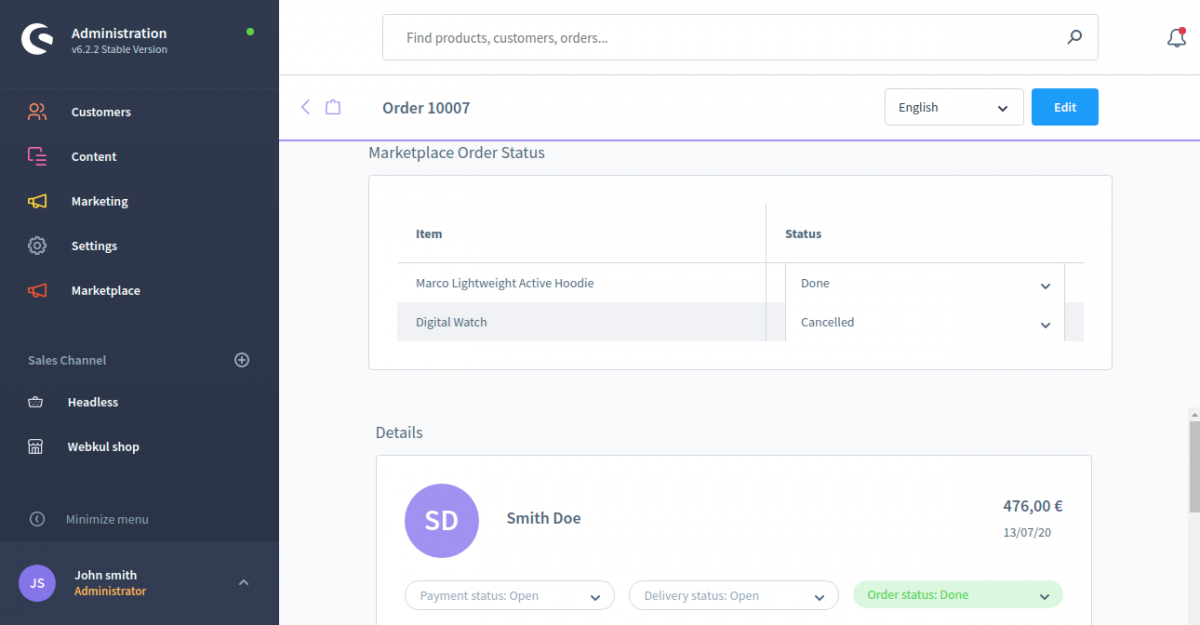
If a customer has placed any two products order, after that customer cancelled one product, so order status in admin end, one order status will show cancelled.

Price of cancelled product will get decreased from total order after cancellation of product.
10007_Orders_Shopware_Administration

 Transaction

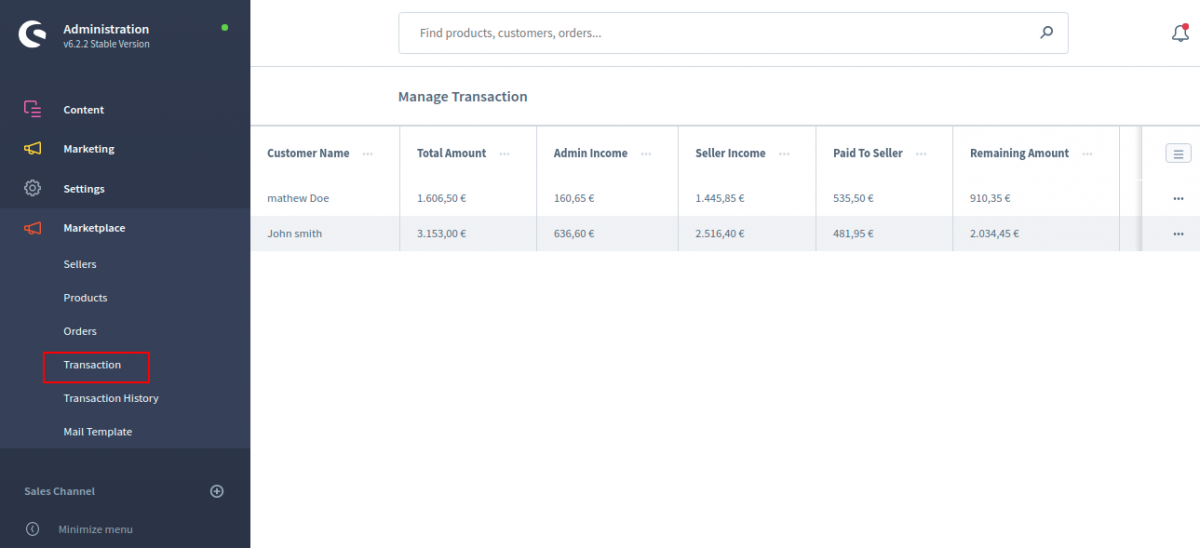
Forthwith, Under the transactions section, the admin will be able to check the transactions of all the marketplace sellers to maintain a record. When admin and seller will be done the order status, then the transaction will show in this part.
Transaction_Shopware_Administration

Here you can also see the details of seller’s Manage Transaction.

  • Customer Name
  • Total Amount
  • Admin Income
  • Seller Income
  • Paid To Seller
  • Remaining Amount

The admin can click on the edit (…) button on any customer. In this page, the admin can see the customer details –

  • Order number
  • Marketplace Product
  • Quantity
  • Total Amount
  • Commission Amount
  • Seller’s Earnings
  • Created At
  • Status

In the payment status, the admin can filter to select paid or unpaid. The admin can select one or multiple transitions for pay to the seller. In the below image, you can see the paid.
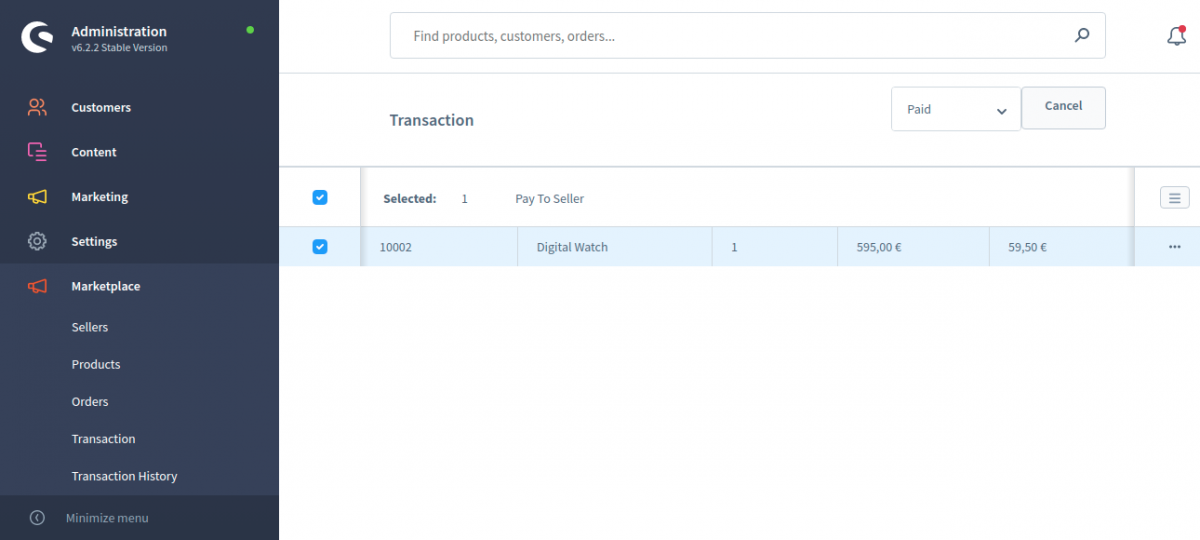
Transaction_Shopware_Administration-2

Here you can see the unpaid transitions.
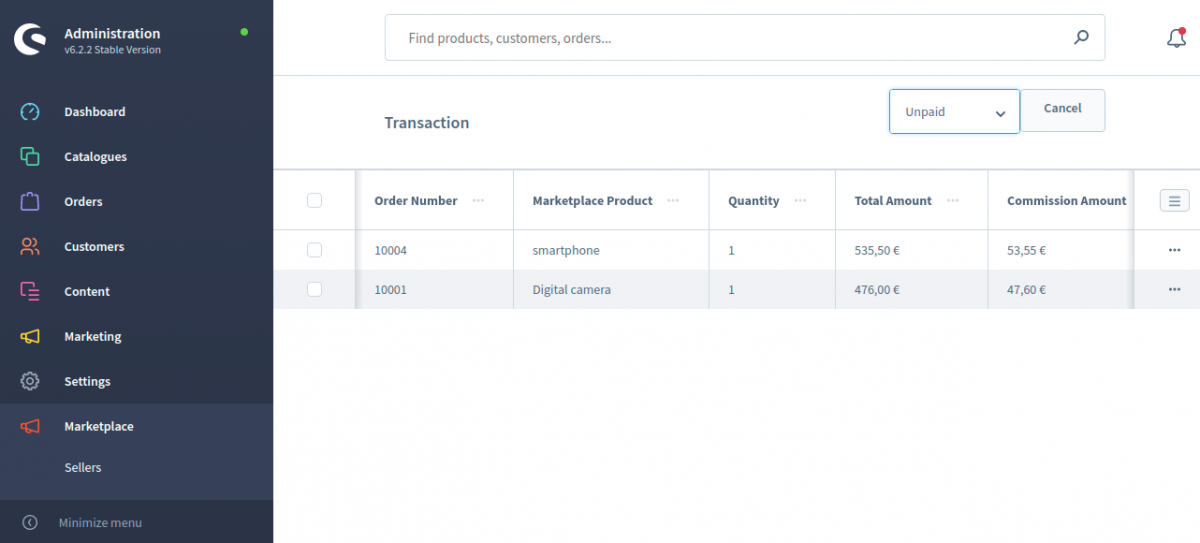
Transaction_Shopware_Administration-4

When admin will pay to seller, then admin can write a note for the seller, after that click on the submit button.
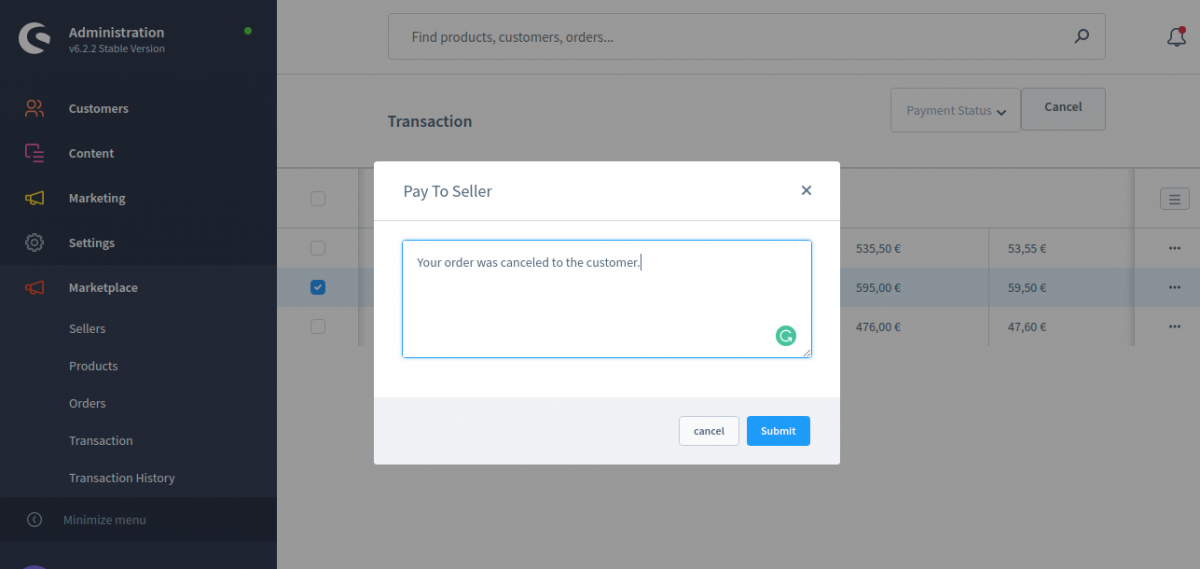
Transaction_Shopware_Administration-3

Transaction History

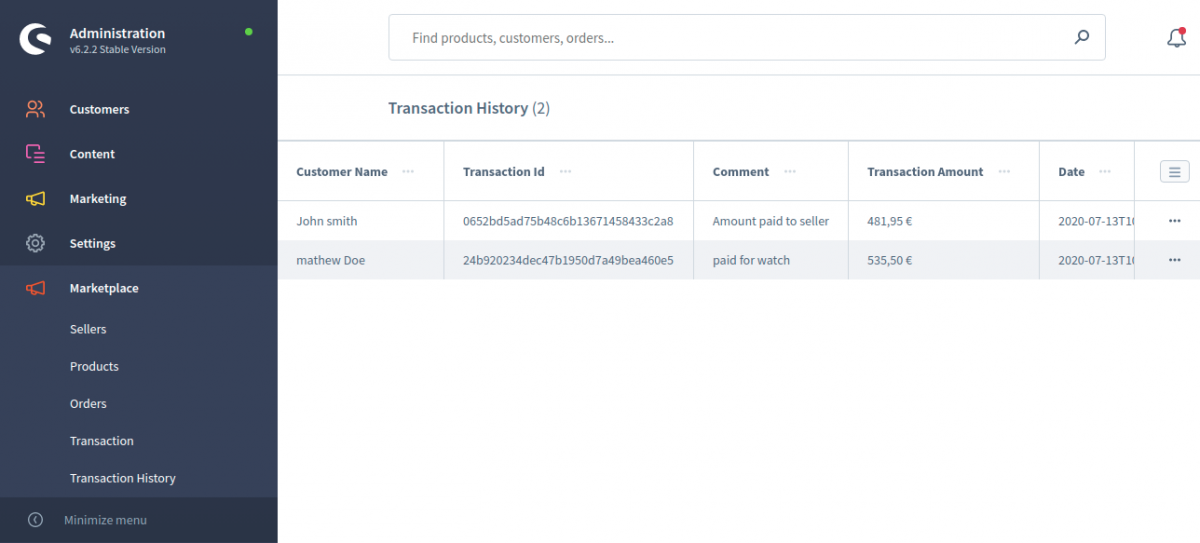
In the Transaction history, the admin see the seller’s translation details.

  • Customer Name
  • Transaction Id
  • Comment
  • Transaction Amount
  • Date
Transaction_History_Shopware_Administration-1

Mail Template

Under the mail section, the admin can create/delete the Mail messages for the default conditions of the Marketplace, the admin can set the mail for different conditions that will occur in the marketplace.

This mail will come only when anyone installs the plugin, it can be edited by admin and can be saved. Also when a customer will become a seller, then a mail has sent to the admin and seller both.

When a seller change the order status, then a mail automatically sent to the customers.
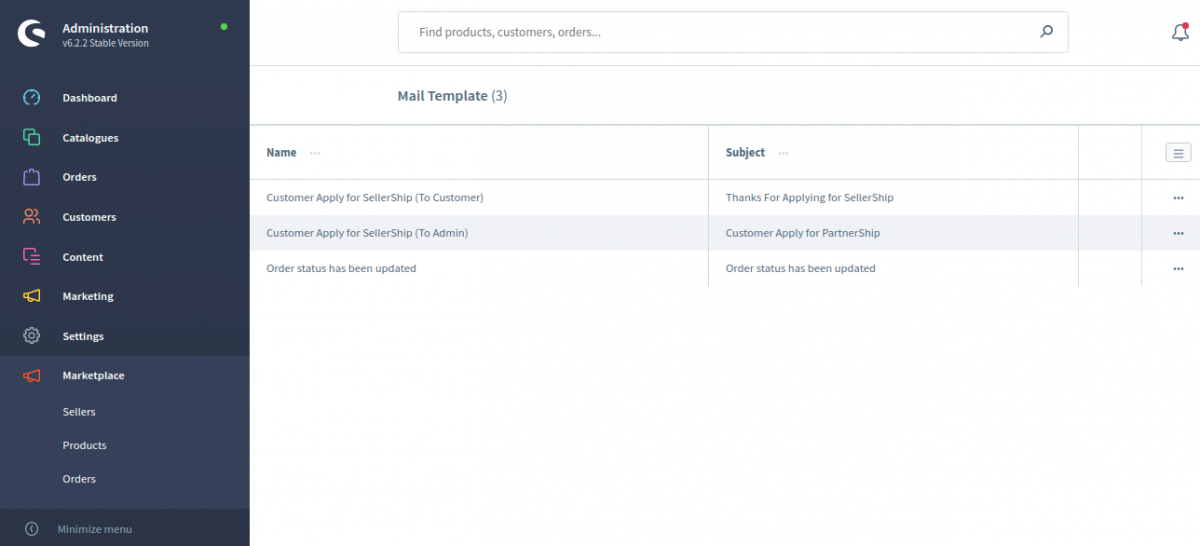
Mail_Template_Shopware_Administration

Admin can click on the edit (…) button on any mail. In this page, the admin can change the mail templates.
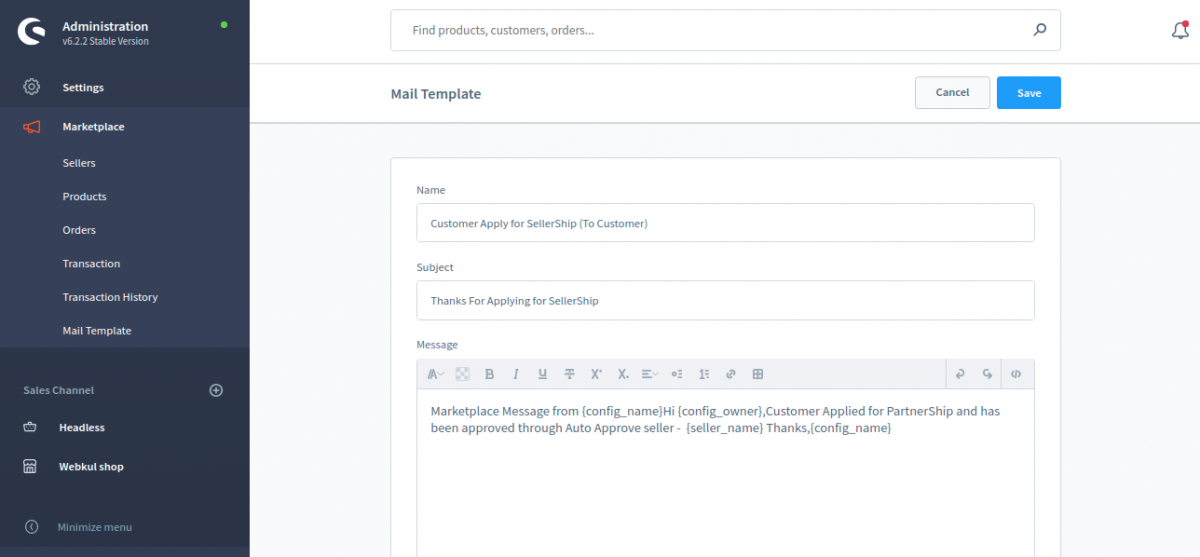
Mail_Template_Shopware_Administration-1

Shopware Multi-Seller Marketplace Front-end

After the installation of the Shopware6 multi-seller module, there will be an icon “Marketplace” on the right side of the screen.

marketplace

The customer can click on the Marketplace Sellers icon under the Marketplace. After that, the customer will be able to see all the marketplace sellers registered at the marketplace.

demo store

The customer can see the details of the seller after clicking on the seller profile.

Catalogue_1

Here the customer can see the seller details like these:

About – Here the customer can check about the seller.

Products – Here the customer can see the seller products and details.

Catalogue_1-1

Reviews – Here the customer can check the seller reviews.

Catalogue_1-2

The customer can also login to review the seller. The customer can enter these details:

  • Ratings – The customer can rate the seller in the marketplace.
  • Summary – The customer can also add a summary of the review.
  • Review – The customer can add a review of the seller.
Catalogue_1-3

Social Links – Here the customer can check the seller’s social media profiles.

Catalogue_1-4-1

Shopware Multi-Seller Marketplace Seller Login

The customer can register himself/herself at the Shopware multi-seller marketplace after clicking on the Register button at the front-end. If the customer already registered at the Marketplace then he/she can click on the login button.

Clothing

After clicking on the “Register” Button the customer can see the registration page. Here the customer can enter his/her details.

Sign_up

The customer can become the seller after selecting the “Yes” option in the “Select “Yes” if you want to become a seller and sell your products on the store.“.

After the registration, the seller can log in to the Shopware multi-seller Marketplace.

Sign_up-1

After the login, the seller can see these seller’s options.

  • Add Products
  • Your profile
  • Your orders
  • Marketplace Sellers
  • Your Products
Webkul_shop

Marketplace Dashboard

 After login, the Marketplace dashboard will appear as shown in the below snapshot.

After clicking on the dashboard, the seller can see the complete statistics for his store account. The seller can see the –

  • Pending orders quantity
  • Number of orders in process
  • Complete orders quantity
  • Number of order canceled

Moreover, the seller can also see the following details like:

  • The total number of orders that have been placed by the customers.
  • The total number of Turnover
  • Total number of logged-in Buyers,
  • Low Stocks
Catalogue_1-5-1

Your Profile –

The seller profile displays critical information about the seller. After the registration, the seller needs to complete the seller profile. The seller can manage the profile under “Seller Profile”. The seller has to enter these details.

Once the seller enters all the details in the profile, the user can access it from the product page.

  • Store Logo
  • Store Banner
  • Social links
  • Store Owner
  • Store Slug
  • Owner Name
  • Store Title
  • Store Description
Catalogue_1-6

The seller profile and rest of the pages will be display on front-end as below images:

Catalogue_1-5

Add Products –

The seller can add the product at the Marketplace. The seller has to enter these details to create the products.

  • Product name
  • Price
  • Product Number
  • Product Stock
  • Description
  • Product Tax
  • Product Manufacturer
  • Media Files
  • Product categories
Add_Product

After saving the products, the seller can see the products in the marketplace seller’s products grid.

Your Products –

Taping the Add Products menu option brings up the section to add the products. Here the seller can easily add in his products. The seller can see all the products created by him/her.

Product_List-1

For delete the product, seller can click on the particular product and delete it.

Product_List-1-2

The seller can add a new product here and also edit the product. To edit the product, the seller has to click on the “Edit” button. Here the seller can see the options.

Orion_Two_Tone_Fitted_Jacket

Update Product – Using this option, the seller can update the created products.

View Product – The seller can click on the “View Product” to check the product on the product page. On the product page, the seller can also see his/her details.

shop24

Variant Generator – The seller can add/generate the variant of the product here.

For creating the variant, the seller can select the “Product Groups” after that the seller can see the seller group option for creating the product variant.

For example: If the seller will select the “Colour” product group then he/she will be able to see the “Group Options” like “Green”, “White”, “Blue”.

variant generation

After that, the seller can click on the “Update Variant” to generate the variant products.

group

Here the seller can edit the details of the variant products –

Price – The seller can change the price of each variant product.

Stock – The seller can change the stock of each variant product.

The seller can click on the “Update” button to update the variant products. The seller can also delete the variant product. After the changes, the seller can see the product at the front-end like this.

Red_tshirt_MP28395

Your Orders –

Now, clicking the Orders menu option will bring up the section to view all the orders that have been placed for this Sellers products. The seller can see these order details:

  • Date – The seller can see the product order date by the customer.
  • Order Number – The seller can check the order number.
  • Order Status – The seller can check the order status.
  • Payment Status – Ther seller can check the payment status like open/closed.
  • Action – The seller can perform the action View and Hide the order details.

Clicking the “Order” link under the column View will allow the seller to view the complete order details.

  • Customer name
  • Customer email
  • Payment Method
  • Shipping Method
  • Commission Amount
  • Seller earnings
  • Total amount
Catalogue_1-9

Marketplace Sellers –

With this option, the seller can check all the registered sellers and his/her details in the marketplace.

Catalogue_1-8

If you are looking for the multi-vendor module for Shopware 5 then please check this link – https://webkul.com/blog/shopware-multi-vendor-marketplace/

Support

That’s all about our Shopware multi-seller marketplace module. If you have still any query, please create a support ticket at- https://webkul.uvdesk.com/en/customer/create-ticket.

https://www.instagram.com/webkul/

Current Product Version – VERSION 1.1.1

Supported Framework Version – Shopware 6.2.0 and 6.2.2


[/expand]


shopware – multiseller


[expand title=“mehr lesen…“]

Introduction

Shopware Multi-Seller (Multi-Vendor) Marketplace for Shopware 6 will completely transform your Shopware 6 store into the marketplace. With this module, any customer can become the seller and sell their products. If the customer is already registered at the store then he/she can apply for the seller ship. The seller can manage seller profile, seller products, seller orders. The seller can see the other seller products and information. With this module, the seller can also add product and product variants.

Basic Requirements –

  • Our Shopware multi-vendor marketplace module is compatible with Shopware 6.x.x.
  • The module will not work with the lower and higher version of Shopware.

Features

  • Customer can become a seller.
  • The admin can set the option to auto-approve the seller.
  • The admin can set the option to auto-approve the seller’s products.
  • Seller info on the product page
  • The admin can check the seller product information.
  • The admin can set the commission percentage.
  • Public seller profile having all the information about the seller
  • The admin can approve/disapprove the seller and seller’s products.
  • The seller can manage the seller profile, seller products, seller orders.
  • With this module, The seller can create simple and variant products.
  • The seller can check other seller’s details.
  • The code is open-source so it can be easily customized.

What is Shopware?

Shopware is the most used eCommerce platform in Germany. Shopware is an enterprise-level platform based on PHP language. There are 80K plus users who have installed the Shopware for managing their products. Shopware is an open-source eCommerce framework. It is growing fastly with great features like Content ManagementDrag-Drop design layoutMulti-warehouse system.

Shopware is now starting to enter new European nations and is making a big impact in the UK. You can check here other Shopware modules – https://store.webkul.com/Shopware.html

Webkul Shopware Connector

Installation Process

Please find here the installation process with terminal:

1) Extract the zip file of the Shopware multi-seller plugin.

2) Upload the folder WebkulMVMarketplace to custom/plugins directory of your Shopware 6.

upload plugin

3) Now open the Shopware 6 application in the Terminal.

4) Run the following commands in the Terminal

shopware
1234 ./bin/console plugin:refresh (Insert and list the plugins)./bin/console plugin:install –activate WebkulMarketplace (Installing and activating the plugin)./bin/console c:c (Clearing the cache)./psh.phar administration:build (Building the application)

5) Now refresh the administration.

Please find here the manual installation process:

1) Extract the zip file of the plugin.

2) Goto your Shopware 6 installation backend panel and navigate to Setting -> System -> Plugins after that you can find all the installed plugin in it.

my plugin

For installing the plugin, the user can click on the Upload Plugin button. The user can upload the plugin zip(WebkulMVMarketplace) here.

3) After uploading the plugin zip, the user can see the plugin in the list.

upload plugin

4) Now the user can click on the install icon to install the Shopware multi-seller plugin.

install

5) After the installation of the plugin, the user can click to activate the plugin.

activate

Shopware Multi-Seller Marketplace Configuration

After installing the Shopware multi-seller plugin, the user can navigate to Setting -> System -> Plugin.

plugin

After clicking on the plugin, the user can see all the installed plugin in the Shopware. The user can click on the “…” icon for the configuration option of the plugin.

config

After clicking on the Config icon, the user can see these options:

Auto Approve Sellers – The admin can enable the option to auto-approve the sellers.

Auto Approve Products – The admin can enable this option to auto-approve the seller’s products.

Commission – Here the admin can set the commission percentage. Let us say as an example there is a seller S1 and his/her product(P1) price is 100 USD so on the sale of product P1 seller will get 80 USD and admin will get 20 USD as commission if the admin will set the 20% commission.

commision

After entering the details, the admin can click on the Save button.

Shopware Multi-Seller Marketplace Admin Panel

For the Shopware Multi-Seller Marketplace admin option, the user can see the marketplace icon at left menus in Shopware6 backend.

Here the user can see these options:

Sellers – The admin can see all the sellers register at the Marketplace. The admin can see these details in the seller’s grid.

  • Name
  • Email
  • Is Apply
  • Total Orders
  • Created at
approved

The admin can approve and disapprove the seller from the admin panel and click on the Is approved button to disapprove the seller.

its approved

The admin can also check the seller details after clicking on the seller’s name.

general

After clicking on the seller name, the admin can see these seller’s details.

  • General
  • Addresses
  • Orders

Products – Here the admin can see all the products created by the sellers in the marketplace. The admin can see the details of the products.

manage seller

In the seller’s product grid, the admin can see these details.

  • Product’s Title
  • Seller’s Name
  • Seller’s Email
  • Price
  • Stock
  • Status
  • Product’s View

The admin can see the seller product details and edit them. All the changes will be reflected in the front-end.

general

The admin can also click on the “view” button to see the products at the front-end.

view

Orders – Here the admin can see the seller’s order created by the customer in the marketplace.

orders

The admin can see these details in the seller’s product order grid.

  • Marketplace Product
  • Quantity
  • Total amount
  • Seller’s Earning
  • Commission Amount
  • Created at

Shopware Multi-Seller Marketplace Front-end

After the installation of the Shopware6 multi-seller module, there will be an icon “Marketplace” on the right side of the screen.

marketplace

The customer can click on the Marketplace Sellers icon under the Marketplace. After that, the customer will be able to see all the marketplace sellers registered at the marketplace.

demo store

The customer can see the details of the seller after clicking on the seller profile.

Shop

Here the customer can see the seller details like these:

About – Here the customer can check about the seller.

Products – Here the customer can see the seller products and details.

shop 24

Reviews – Here the customer can check the seller reviews.

jessie

The customer can also login to review the seller. The customer can enter these details:

  • Ratings – The customer can rate the seller in the marketplace.
  • Summary – The customer can also add a summary of the review.
  • Review – The customer can add a review of the seller.
reviews

Social Links – Here the customer can check the seller’s social media profiles.

social links

Shopware Multi-Seller Marketplace Seller Login

The customer can register himself/herself at the Shopware multi-seller marketplace after clicking on the Register button at the front-end. If the customer already registered at the Marketplace then he/she can click on the login button.

login

After clicking on the “Register” Button the customer can see the registration page. Here the customer can enter his/her details.

yes

The customer can become the seller after selecting the “Yes” option in the “Select “Yes” if you want to become a seller and sell your products on the store.“.

After the registration, the seller can log in to the Shopware multi-seller Marketplace.

login

After the login, the seller can see these seller’s options.

  • Add Products
  • Your profile
  • Your orders
  • Marketplace Sellers
  • Your Products
markerplace

Your Profile –

After the login, the seller can add the seller profile. The seller has to enter these details.

  • Store Logo
  • Store Banner
  • Social links
  • Store Owner
  • Store Slug
  • Owner Name
  • Store Title
  • Store Description
your profile

After adding the store profile details, the seller profile will be looking like this.

about

Add Products –

The seller can add the product at the Marketplace. The seller has to enter these details to create the products.

  • Product name
  • Price
  • Product Number
  • Product Stock
  • Description
  • Product Tax
  • Product Manufacturer
  • Media Files
  • Product categories
add product

After saving the products, the seller can see the products in the marketplace seller’s products grid.

Your Products –

The seller can see all the products created by him/her.

edit

The seller can add a new product here and also edit the product. To edit the product, the seller has to click on the “Edit” button. Here the seller can see the options.

variant generation

Update Product – Using this option, the seller can update the created products.

View Product – The seller can click on the “View Product” to check the product on the product page. On the product page, the seller can also see his/her details.

shop24

Variant Generator – The seller can add/generate the variant of the product here.

select product group

For creating the variant, the seller can select the “Product Groups” after that the seller can see the seller group option for creating the product variant.

For example: If the seller will select the “Colour” product group then he/she will be able to see the “Group Options” like “Green”, “White”, “Blue”.

variant generation

After that, the seller can click on the “Update Variant” to generate the variant products.

group

Here the seller can edit the details of the variant products –

Price – The seller can change the price of each variant product.

Stock – The seller can change the stock of each variant product.

The seller can click on the “Update” button to update the variant products. The seller can also delete the variant product. After the changes, the seller can see the product at the front-end like this.

colour

Your Orders –

Here the seller can see the order created by the customer. The seller can see these order details:

  • Date – The seller can see the product order date by the customer.
  • Order Number – The seller can check the order number.
  • Order Status – The seller can check the order status.
  • Payment Status – Ther seller can check the payment status like open/closed.
  • Action – The seller can perform the action View and Hide the order details.

After clicking on the view order icon, the seller can see these details:

  • Customer name
  • Customer email
  • Payment Method
  • Shipping Method
  • Commission Amount
  • Seller earnings
  • Total amount
order

Marketplace Sellers –

With this option, the seller can check all the registered sellers and his/her details in the marketplace.

clothing

If you are looking for the multi-vendor module for Shopware 5 then please check this link – https://webkul.com/blog/shopware-multi-vendor-marketplace/

Support

That’s all about our Shopware multi-seller marketplace module. If you have still any query, please create a support ticket at- https://webkul.uvdesk.com/en/customer/create-ticket.


[/expand]


Amazon Dropdown Menü Professionell


[expand title=“mehr lesen…“]

(2) 70,00 €  * Gratis Updates und Support für 12 Monate (Subscription)

Support durch coolbax TestenDemo Quelloffen 363 Downloads Verfügbare Bundles Sticky Menü + Amazon Dropdown Menü 89,99 €  * Statt 109,00 €  * Bundles anzeigen Dieses Plugin ist für Shopware 6 verfügbar Shopware 6 Signet Voraussichtlich verfügbar ab Juli 2020 Dieser Hersteller reagiert schnell auf Supportanfragen Bewerten Plugin melden

  • Version 2.3.5
  • Letztes Update 07.11.2019
  • Unterstützte Sprachen de_DE
  • Support von coolbax
  • Kompatibel mit 5.0.0 – 5.0.4 5.1.0 – 5.1.6 5.2.0 – 5.2.27 5.3.0 – 5.3.7 5.4.0 – 5.4.6 5.5.0 – 5.5.10 5.6.0 – 5.6.6

Bundles

Sticky Menü + Amazon Dropdown Menü Lagerabgleich + Bestellimport 89,99 €  * Statt 109,00 €  *

Sticky Menü Professionell

1x Sticky Menü Professionell coolbax   39,00 €  *

Amazon Dropdown Menü Professionell

1x Amazon Dropdown Menü Professionell coolbax   70,00 €  * Beschreibung Bewertungen 2 InstallationsanleitungÄnderungenDemo

Produktinformationen

Wenn Sie dieses Menü installiert haben, müssen Sie das Shopware Plugin „Erweitertes Menü“ deaktivieren.

Amazon Dropdown Menü Professionell

Sie sind ein großer Fan von dem Aufbau und der Darstellung des Amazon Menü? Jetzt haben Sie die Möglichkeit diese Darstellung in Ihren Shop einzusetzen und nach ihren Vorstellungen anzupassen. Einen Platzmangel bei der Darstellung der Hauptkategorien kann es nicht mehr geben, da diese zusammengefasst unter dem Punkt „Alle Kategorien“ angezeigt werden. Gestalten Sie jede einzelne Hauptkategorie individuell mit Bildern und Texten. Zudem können die Layouteinstellungen, welche in dem Plugin festgelegt wurden, noch einmal individuell für jede einzelne Hauptkategorie geändert werden. Der entstandene Freiraum im Header kann mit bis zu fünf ausgewählte Shopseiten ausgefüllt werden.Im Demoshop testen
Das Handbuch ansehen

Funktionsumfang & Vorteile

  • Darstellung von unbegrenzte viele Hauptkategorien
  • Integration von Bildern mit Positionsangabe
  • Zwei Möglichkeiten Texte hinzuzufügen
  • Badge hinterlegen (z.B. NEU oder SALE)
  • Fünf ausgewählte Shopseiten können prominent im Header angezeigt werden
  • Weitere Einstellungsmöglichkeiten:
    • Höhe und Spaltenlayout des Submenü (ein- bis vierspaltig)
    • Diverse Farbeinstellungen für das Menü
    • Layouteinstellungen für Kategoriespalten (ein- bis vierspaltig)

Geben Sie Ihren Kunden einen Hinweis

Badge´s weisen auf die wichtigsten Erneuerungen innerhalb einer Kategorie hin. Egal ob ein Hauptmenüpunkt neu hinzugefügt wurde oder ob gerade eine heiße Sale-Aktion stattfindet. Mit den Badge´s informieren Sie Ihre Kunde bereits bei der Sichtung der Navigationsstruktur darüber. Schriftfarbe, Hintergrundfarbe und das Schlagwort können individuell gewählt werden. Pro Hauptnavigationspunkt ist nur ein Badge vorgesehen.

Bilder gehen über das Menü hinaus

Ansprechende Bilder bzw. Werbung kann im Submenü eingefügt und mittels Positionsangabe platziert werden. Durch diese Positionsangabe ist es möglich, das Bild über das Submenü erscheinen zu lassen um somit einen schönen Effekt zu schaffen. Ein kleiner Tipp von uns. Verwenden Sie Bilder mit transparentem Hintergrund.

Platz für Informationen

Im Submenü haben Sie zwei Möglichkeit Texte anzuzeigen. In den Hauptkategorien haben Sie die Möglichkeit einen Text im Feld „Custom HTML“ einzufügen. Dieser kann z.B. in einer extra Spalte angezeigt werden. Mit der zweiten Möglichkeit, können Sie eine Unterkategorie näher beschreiben. Diese Möglichkeit funktioniert allerdings nur auf der 3ten Ebene.

Fragen
Sie haben Fragen zum Plugin oder zur Einrichtung? Dann schauen Sie gerne bei unserem Handbuch vorbei oder Sie schreiben uns direkt an: info@coolbax.de

Weitere Plugins zum Thema Navigation:

Erweitertes Menü Professionell
Breadcrumb Erweiterung
Sticky Menü Professionell

Weiterführende Links

Infos zum Hersteller

coolbax Shopware Business Partner


[/expand]